Last updated June 2026
Quick answer
Education app screenshots must communicate progress and pedagogical clarity within the first two seconds of viewing. Learners and parents evaluating educational tools are not looking for entertainment; they are looking for evidence that time spent in your app will produce measurable skill growth. Your first screenshot should show an active lesson interface, a completed exercise with feedback, or a progress dashboard that visualizes advancement through a curriculum. The visual tone should feel encouraging and orderly, using colors that signal focus and growth without overwhelming the viewer. Avoid screenshots that show empty course catalogs, generic promises about learning, or interfaces so cluttered with badges and notifications that they resemble games rather than educational environments.
What makes education screenshots convert
The decision to download an education app is one of the most deliberate actions a user takes on the App Store. Unlike impulse-driven social or gaming downloads, education apps require the user to commit time, attention, and often money. This means your screenshots must function as a credible teaching demo, not just a marketing banner.
Your first screenshot must present a clear learning outcome. A language app should show a completed translation exercise with a green checkmark and a "You're on a 7-day streak" banner. A math app should show a worked solution with step-by-step annotation. A coding app should show actual code running inside the app with a visible output. The principle is simple: show the result, not the syllabus. Users do not care how many lessons you have; they care whether those lessons actually work.
The visual psychology of education screenshots leans heavily on clarity and encouragement. Learning is inherently uncomfortable because it involves confronting ignorance. If your screenshots feel chaotic, cluttered, or punitive, users will associate those negative emotions with your app before they even install. The best education screenshots use clean grid layouts, generous spacing, and gentle color transitions that make the interface feel like a supportive tutor rather than a demanding exam. Your layout should place text on the left with a headline that names a specific skill, while the device frame on the right shows the app delivering that skill in real time.
Social proof in education operates differently than in other categories. "Trusted by 50,000 teachers" is powerful, but "93% of users improve their test scores" is even more powerful because it speaks to the exact metric learners care about. Screenshots that include small progress bars, star ratings from educators, or certification badges convert better than generic five-star reviews because they tie social proof to pedagogical credibility. Parents in particular scan for evidence that an app is used in schools or recommended by teachers.
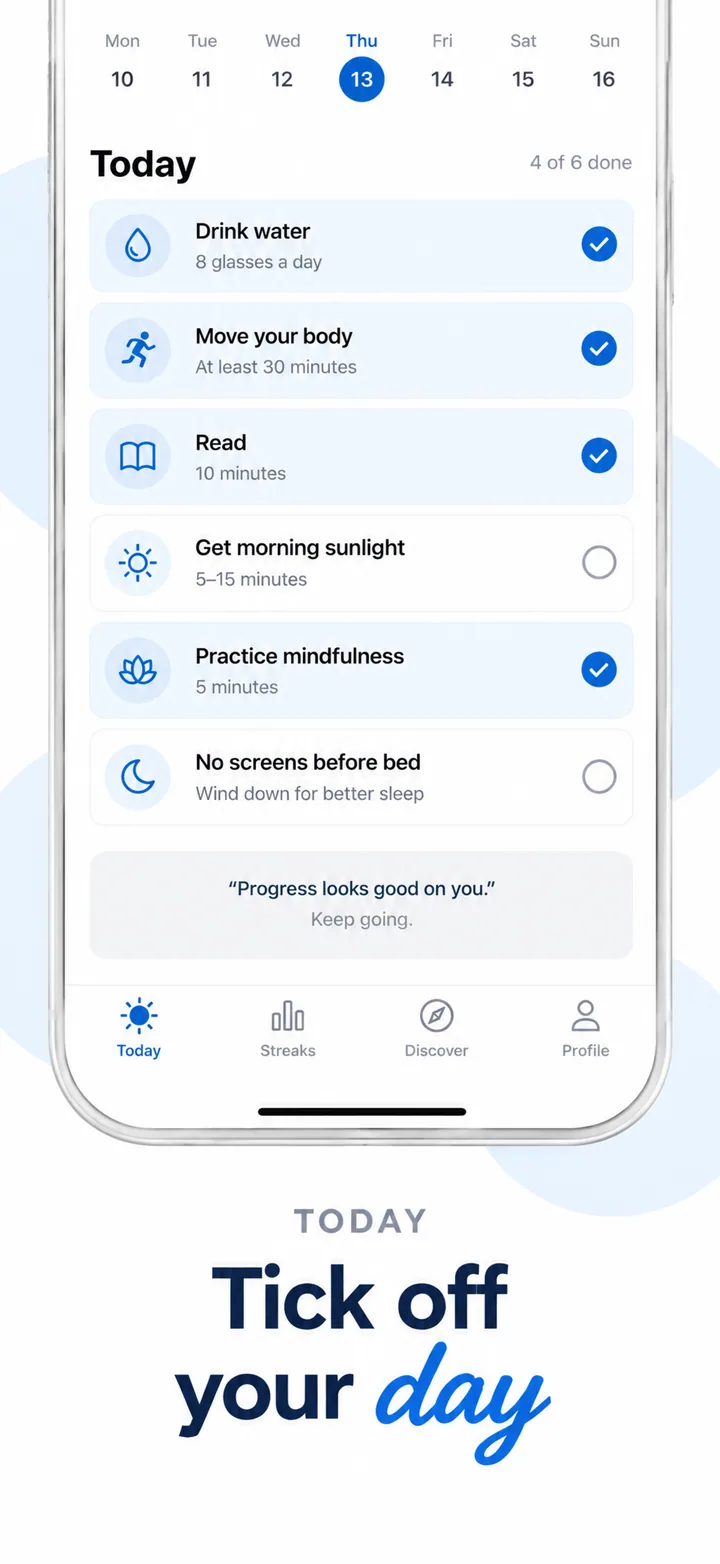
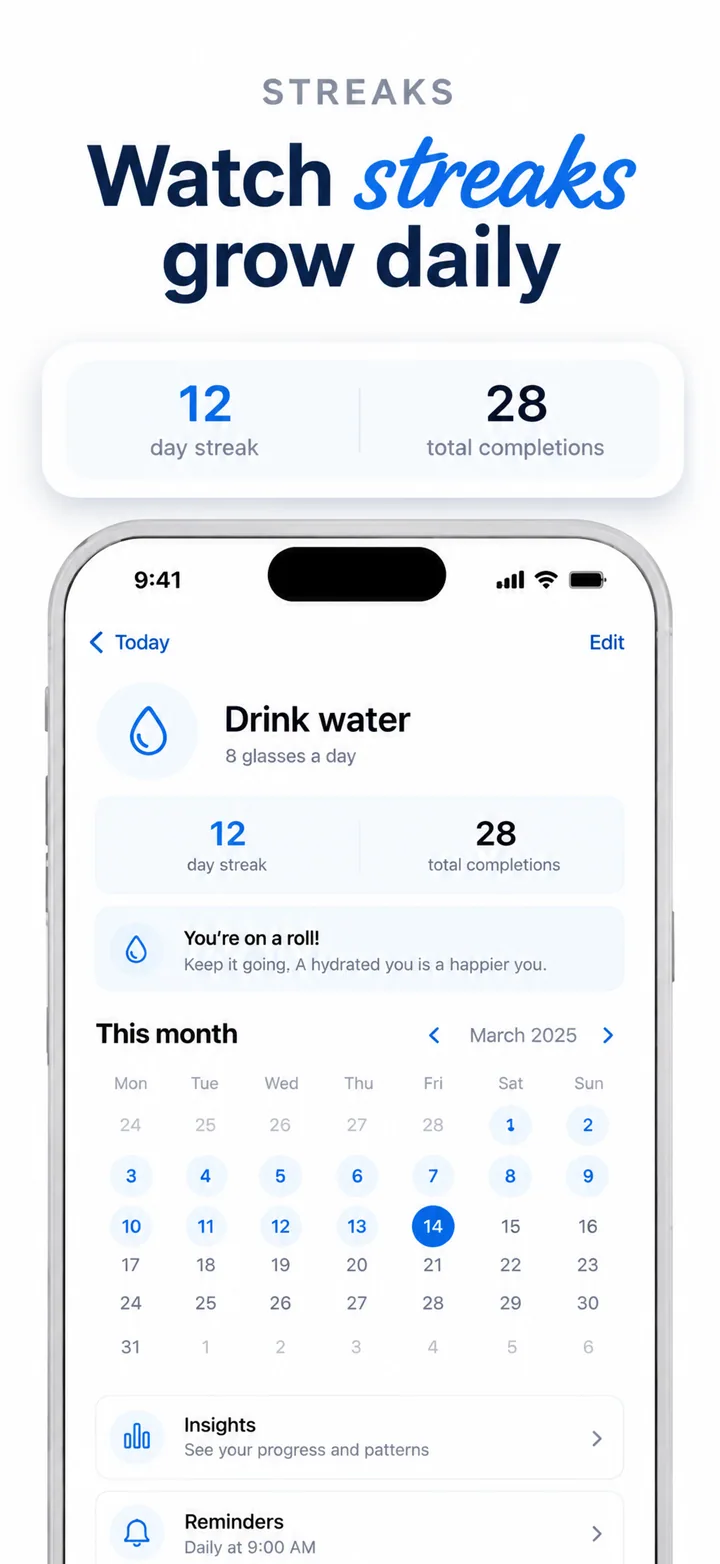
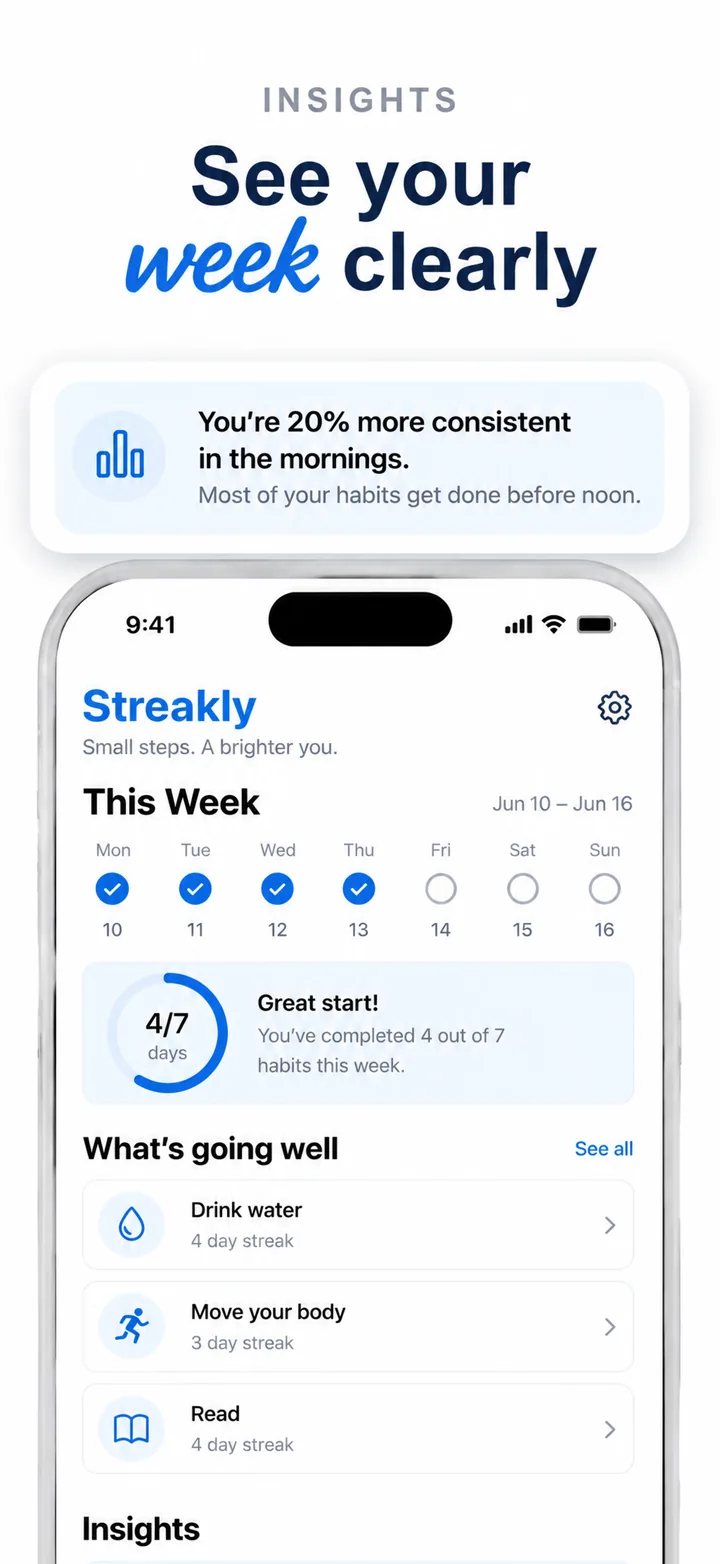
Layout advice for education screenshots: frame one is the lesson in action. Show an active exercise, a solved problem, or a vocabulary review with visible feedback. Frame two shows progress tracking: streaks, completion percentages, or skill trees. Frame three shows interactive or multimedia content: video lessons, AR models, or audio playback. Frame four shows community or tutoring features if applicable. Frame five closes with certificates, achievements, or a clear path to the next learning milestone. This arc demonstrates that your app delivers a complete learning journey from engagement to mastery.
Best colors for education apps
Color in education apps functions as a cognitive aid. The right palette can improve focus, reduce anxiety, and create positive associations with learning. The wrong palette can make studying feel like a chore or, worse, a juvenile game.
Warm yellow and soft gold are the most effective colors for general education and language learning apps. Yellow is psychologically linked to optimism, memory retention, and creative thinking. Classrooms and libraries have used warm lighting for centuries because it reduces eye strain and creates a welcoming atmosphere. A soft yellow accent behind a vocabulary card or math solution signals that the learning environment is friendly rather than threatening. Avoid bright, saturated yellow which can feel abrasive over time.
Soft green and sage are ideal for STEM, science, and nature-focused educational apps. Green signals growth, logic, and environmental connection. A biology app using sage backgrounds feels like a field journal rather than a textbook. A coding tutorial app using mint green accents signals fresh thinking and logical clarity. Green is also the color most associated with correct answers and positive feedback, making it a natural choice for quiz and assessment interfaces.
Deep blue and navy are the strongest choices for higher education, professional certification, and serious academic tools. Dark blue conveys authority, depth, and intellectual rigor. A law exam prep app or a medical board review app using navy backgrounds signals that the content inside is substantial and worth the user's study time. When paired with crisp white text and subtle gold or silver accents for premium content, navy creates a sense of academic prestige that justifies subscription pricing.
Clean white and warm ivory should be the default background for reading-heavy and writing-focused apps. White space is not empty; it is cognitive breathing room. Flashcard apps, note-taking tools, and reading comprehension platforms need generous white backgrounds because dense color fields compete with the text the user is trying to learn. A warm ivory background is preferable to pure white because it reduces screen glare and feels less clinical.
Colors to avoid: Neon colors and high-saturation primaries feel toy-like and undermine the seriousness of educational content. A bright red background triggers stress responses that are counterproductive for learning. Muddy browns and greys feel dated and dull, suggesting that the content itself is old or poorly maintained. Avoid heavy use of purple unless you are targeting very young children, as purple is strongly associated with preschool and early learning brands and can make advanced content feel inappropriately juvenile.
Common mistakes education apps make
Education apps face the difficult challenge of selling a long-term commitment in a short-term medium. Your screenshots have to convince a user to invest hours of their life into your content. These five mistakes make that persuasion impossible.
Mistake one: showing empty course catalogs. A screenshot of a browse screen with course thumbnails and no active lesson is like a teacher showing an empty classroom. It promises future value without proving present capability. Users evaluating education apps want to see the actual teaching interface, the feedback mechanisms, and the content quality. Fix this by populating your screenshots with active lessons, completed exercises, and visible progress indicators.
Mistake two: gamifying too aggressively in screenshots. Badges, points, explosions, and cartoon mascots can work for children's apps, but when applied to adult professional education they signal triviality. A user preparing for a certification exam does not want to feel like they are playing a mobile game. Fix this by matching your screenshot aesthetic to the age and seriousness of your audience. Professional learners need clean, data-rich screenshots. Young learners can tolerate more playful elements.
Mistake three: vague outcome promises. Headlines like "Learn anything" or "The best way to learn" are so broad they mean nothing. Education is inherently specific; users are trying to learn Spanish, pass the bar exam, or master linear algebra. Generic promises fail to match their search intent. Fix this by using precise headlines: "Master 2,000 Spanish words in 90 days" or "Pass the NCLEX on your first attempt." Specificity builds credibility.
Mistake four: ignoring accessibility. Education apps serve diverse learners, including users with dyslexia, color blindness, and vision impairments. Screenshots with tiny text, low-contrast color combinations, or cluttered layouts signal that the app was not designed with accessibility in mind. This alienates a significant portion of your audience and can generate negative reviews from educators. Fix this by ensuring your screenshots feature readable type sizes, high-contrast text on backgrounds, and clean uncluttered layouts.
Mistake five: inconsistent visual identity across frames. Because education apps often contain multiple content types, screenshots sometimes jump from a bright cartoon vocabulary game to a dark, serious grammar quiz to a neon progress dashboard. This visual whiplash makes the app feel disjointed and unprofessional. Fix this by establishing a consistent palette, typography system, and layout rhythm across all five frames. The content can vary, but the container should feel unified.
How to create education screenshots with AI
Creating education app screenshots with Nuvex allows you to focus on curriculum quality while the AI handles visual presentation and pedagogical tone.
Step one: Upload your key screens: an active lesson, a progress dashboard, an interactive exercise, and a certificate or achievement view. Avoid onboarding, login, or settings screens. The AI needs to see the learning content itself.
Step two: Describe your app with educational specificity. Instead of "learning app," write "interactive biology tutor for high school students with 3D cell models and adaptive quizzes." Nuvex uses this to select appropriate palettes, headline formulas, and layout density that match your subject and audience age.
Step three: Generate five frames. The AI automatically biases toward clean, encouraging layouts with progress indicators, clear headlines, and organized visual hierarchy. Frame one typically shows the active learning experience.
Step four: Refine per frame. "Make frame 2 emphasize streak tracking" or "Add a certificate preview to frame 5." Each frame regenerates independently while maintaining set consistency.
Step five: Export in exact App Store and Google Play dimensions. Download and upload to your store listings.
Want education screenshots that convert?
Try Nuvex — free to start, no credit card.