Use case

Screenshots for productivity apps.

Task managers, note apps, calendars, focus timers, habit trackers. Productivity is the most design-literate app category — users judge competence by screenshot quality. Here's what works.

Last updated June 2026

On this page
  1. Quick answer
  2. What makes productivity screenshots convert
  3. Best colors for productivity apps
  4. Common mistakes productivity apps make
  5. How to create productivity screenshots with AI
  6. FAQ

Quick answer

Productivity app screenshots should feel calm, organized, and efficient. Clean layouts, white space, and clear feature callouts work best because productivity users are design-literate — they judge competence by screenshot quality. Your first frame must show a specific workflow that makes your app different from the ten similar tools the user has already tried. Generic "be productive" promises are ignored.

What makes productivity screenshots convert

Productivity users are themselves discerning about UI. A productivity app's screenshots are judged as craft, not just marketing. A single fumbled frame — wrong kerning, inconsistent spacing, dated iconography — signals "low-craft app." Users in this category have tried 10+ similar apps and developed a precise sense of what good looks like.

The first screenshot must answer: what specific workflow does this app own? Not "be productive." Not "get organized." Those are category claims, not product claims. A note app leading with "write without formatting" immediately differentiates from Notion. A calendar app leading with "built for freelancers juggling three clients" immediately differentiates from Google Calendar. Specificity is the only currency that matters.

Visual psychology in productivity is about reducing friction signals. Users want to feel that using this app will be effortless. Cluttered screenshots, busy backgrounds, and too many colors all signal friction. Minimalist compositions with generous negative space feel fast. Clean grids feel reliable. Restrained color palettes feel focused.

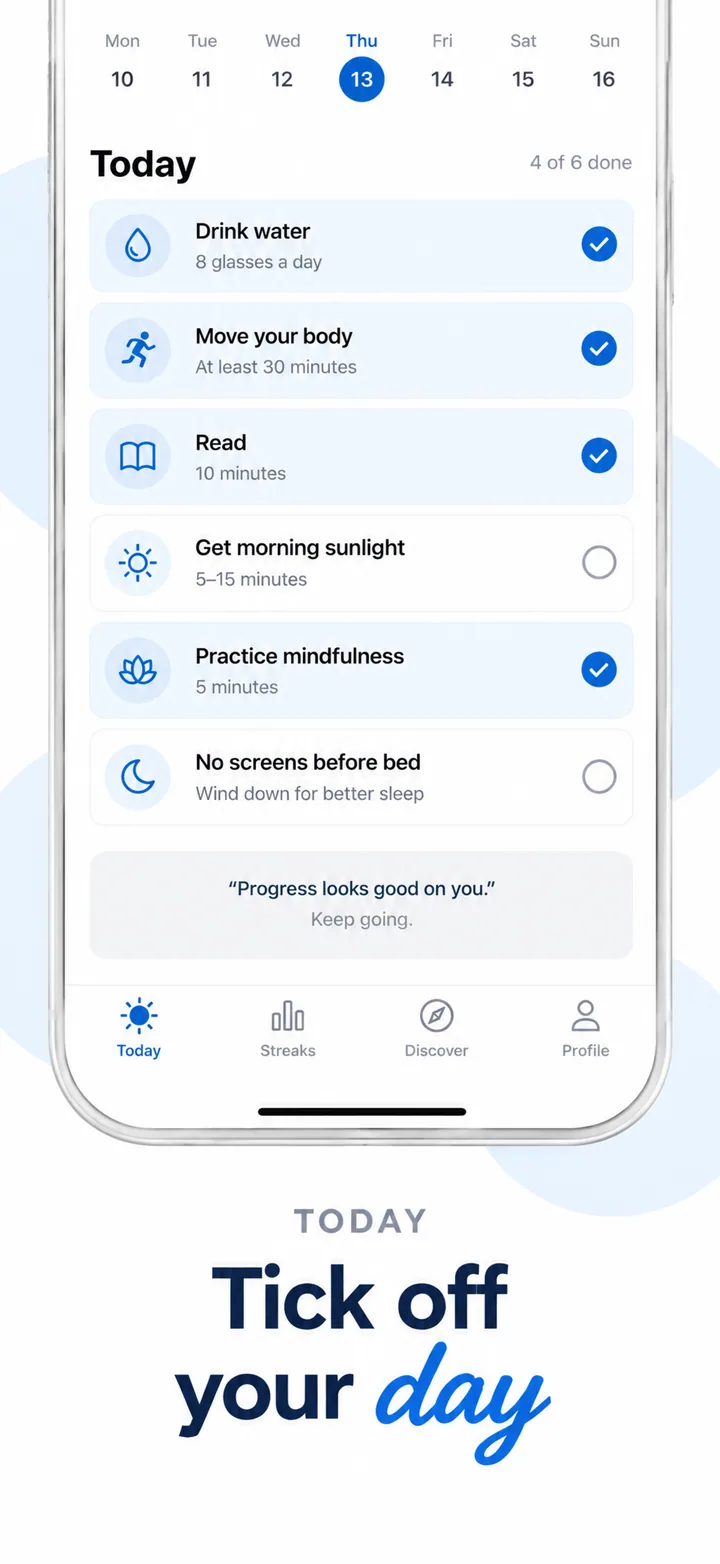
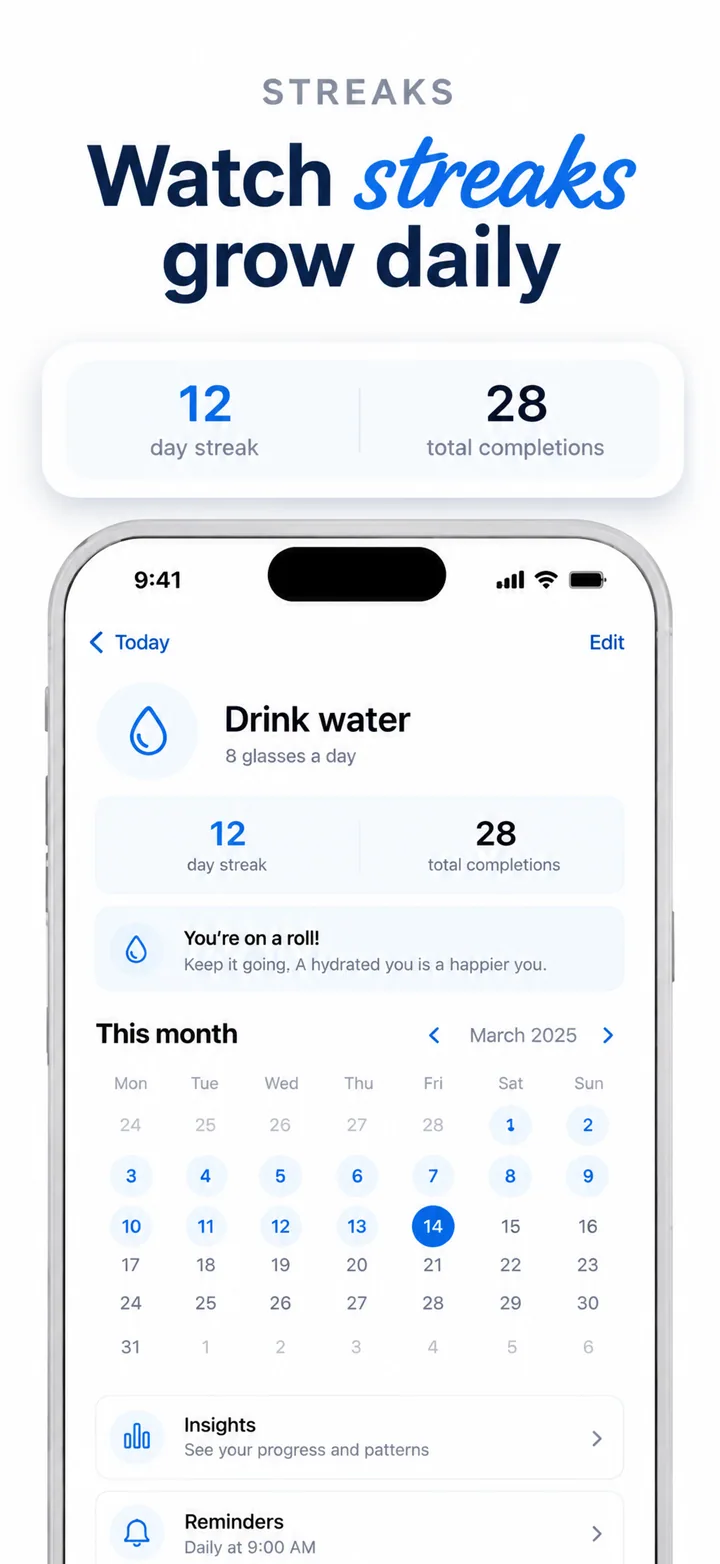
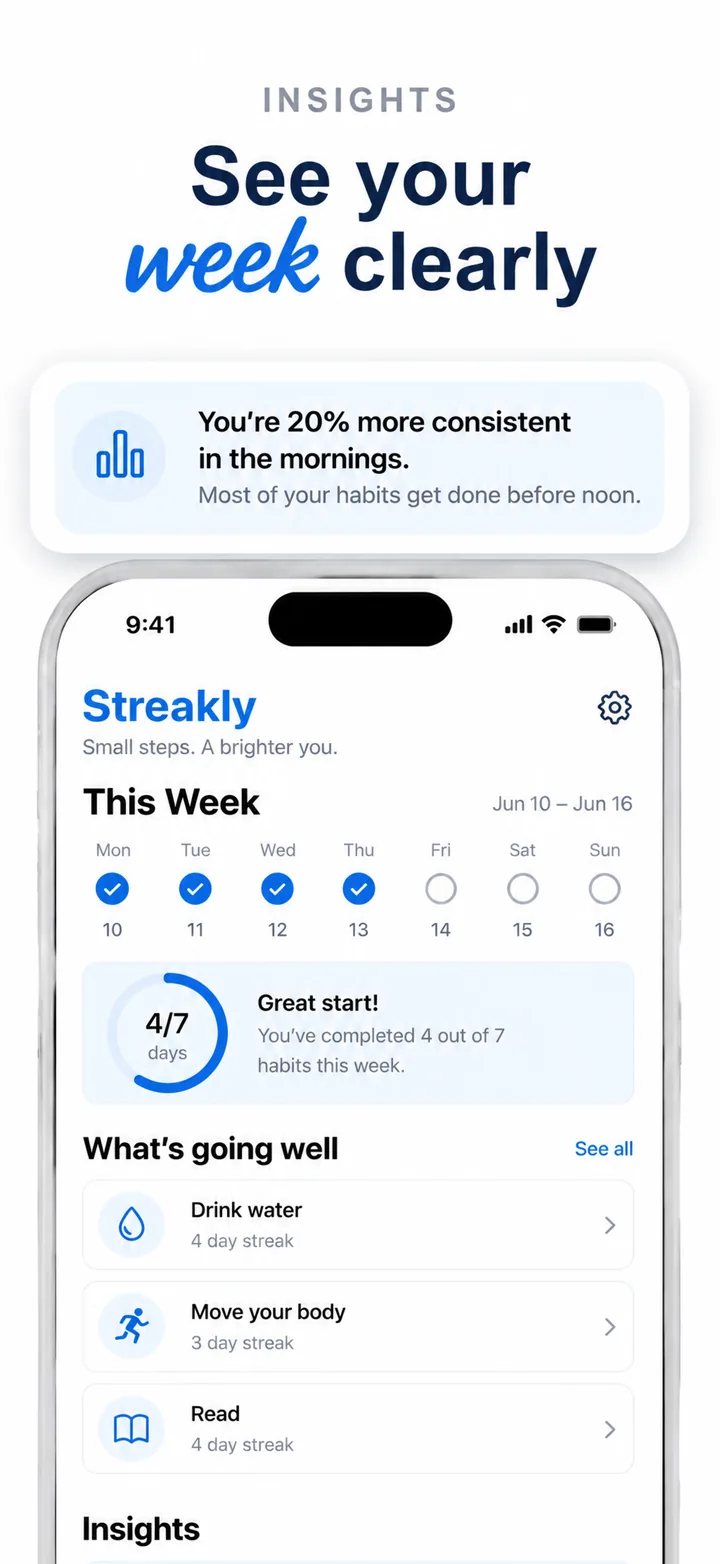
Specific layout advice: make the device frame relatively small and the app UI large. The UI should be legible — actual task names, real calendar events, recognizable notes. Headlines should be concise and positioned in the upper third. Avoid decorative backgrounds; let the app's own design be the hero. If you have a killer feature like natural language input or cross-device sync, show it in the UI rather than describing it in text.

Social proof and trust signals in productivity are about ecosystem depth. "Works with Apple Watch," "Syncs with Notion," "Keyboard shortcuts for power users" — these signals tell experienced users that the app is serious. Integration badges, platform availability icons, and shortcut hints all increase perceived value. For this category, depth signals quality.

Best colors for productivity apps

Color in productivity screenshots communicates focus, not excitement. The palette must feel like a tool, not a toy.

Blue and teal are the productivity standards. Blue signals trust, calm, and dependability — the same reasons it dominates enterprise software. Teal adds a modern edge without breaking the calm signal. These colors reduce eye strain perception and create the mental state users want when they open a task manager or calendar. Use them for backgrounds, accents, and primary buttons.

Soft grey and warm white create the ultimate neutral workspace. They signal sophistication and let the app's UI colors breathe. High-end productivity tools like Craft, Bear, and Ulysses use warm neutrals to create an editorial, paper-like feel. This palette signals that the app is for serious work, not casual use.

Green and orange work as single accent colors. Green signals completion, progress, and positive action — perfect for checkmarks, progress bars, and "done" states. Orange adds energy for call-to-action buttons without the anxiety of red. Use only ONE accent color per screenshot set. Multicolor productivity screenshots look like children's apps.

Premium black, white, and gold create an exclusive, professional aesthetic. This palette signals that the app is for power users, executives, or creative professionals. It creates high contrast that makes typography and data stand out. Use sparingly — it works best for premium-tier apps with advanced features.

Colors to avoid: Bright red signals alarm and urgency — fine for notifications, but toxic as a dominant screenshot color for productivity. Neon and rainbow palettes signal distraction and lack of focus. Brown and earth tones feel sluggish and outdated. Multicolor chaos makes the app look unserious.

Common mistakes productivity apps make

Even functional productivity apps lose downloads to screenshot mistakes that signal low craft. Here are the five most common errors.

Mistake 1: Stock productivity photos. Hands typing on laptops. Sunsets from office windows. Coffee cups on desks. App Store users have seen these thousands of times. They signal "generic app with nothing unique to show." Fix it: show the actual app UI with real data. Your product is the hero, not lifestyle imagery.

Mistake 2: Too many features in one frame. Productivity users value focus. A screenshot that shows tasks, calendar, notes, habits, and focus timer all at once signals "unfocused app that does nothing well." Fix it: one value proposition per frame. Frame one: the specific workflow. Frame two: the core feature. Frame three: cross-device sync. Frame four: power-user feature. Frame five: call to action.

Mistake 3: Generic headlines. "Get things done" and "Be more productive" are invisible. They apply to every app in the category. Fix it: write headlines that only your app could claim. "For people who think in outlines." "Cmd + N. Type. Done." "10,000+ tasks, zero categories."

Mistake 4: Fake data that looks templated. "45 tasks completed," "Monday 9:00 meeting with John," "Project Alpha — In Progress." These feel like placeholder content from a design template. Fix it: populate the UI with realistic demo data that tells a story. A freelance project list with real client names. A calendar with varied event types. A notes app with actual paragraphs.

Mistake 5: Hiding the UI behind decorative backgrounds. Productivity users need to see the interface to judge craft quality. A screenshot that is 60% gradient background and 40% blurred app tells the user you have something to hide. Fix it: make the app UI dominant. The background should be simple and unobtrusive.

How to create productivity screenshots with AI

Nuvex understands that productivity screenshots are judged as craft. The AI biases toward minimalist compositions, understated palettes, and headlines that differentiate rather than generically promise. You upload your app screens, describe the specific workflow, and get five store-ready frames in about 30 seconds.

Step 1: Upload 3-5 screenshots of your actual app. Include the main task view, a detail view, and a settings or sync screen. These give the AI real UI to feature rather than inventing generic interfaces.

Step 2: In the prompt, describe the specific user and workflow, not the feature set. Write: "Minimalist todo app for freelancers who hate categorization." Not: "Task manager with tags, priorities, and due dates." The AI uses this to bias headlines toward differentiation.

Step 3: Review the five generated frames. Frame one should be the specific workflow hook. Frame two the core feature in action. Frame three a power-user signal. Frame four cross-device or integration proof. Frame five a call-to-action or premium preview.

Step 4: Refine per frame. Click any frame and type "more minimal background," "shorter headline," or "show the keyboard shortcut." The AI regenerates just that frame while keeping the set visually coherent.

When you tell Nuvex "productivity app," the AI shifts toward minimalist compositions with UI dominant, tight monochrome palettes with one accent, and headlines that differentiate rather than generically promise. You get screenshots that compete with Things and Linear without starting from zero.

Want productivity screenshots that convert?

Try Nuvex — free to start, no credit card. Generate five store-ready frames in 30 seconds.

Frame-by-frame strategy for productivity apps

The sequence of your screenshots must guide a discerning user from curiosity to conviction. Productivity users have tried dozens of similar tools. They evaluate craft, focus, and differentiation in seconds. A narrative arc that moves from specific workflow to power feature to ecosystem proof converts better than random feature highlights.

Frame 1 — The specific workflow. This frame must answer: what does this app do that my current tool does not? Use a headline that only your app could claim. "For freelancers juggling three clients." "Write without formatting." "10,000+ tasks, zero categories." The phone should show a real, filled UI state — not an empty onboarding screen. This frame appears in search results and must stop the scroll of a user who has seen ten similar apps today.

Frame 2 — The core feature. Show the primary interaction in action. Natural language input converting to a scheduled task. A drag-and-drop calendar rearrange. A keyboard shortcut triggering a command palette. The user needs to see how the app feels to use, not just what it does. This frame converts browsers into downloaders because it proves the interaction is better than their current tool.

Frame 3 — The power-user signal. Productivity users judge depth. Show a feature that signals sophistication: cross-device sync, advanced filtering, automation rules, or integration badges. "Syncs with Notion." "Works on Mac, iPad, and iPhone." "Keyboard shortcuts for everything." This frame answers the objection: "is this a toy or a tool?"

Frame 4 — The ecosystem proof. Show that the app fits into a real workflow. A widget on the home screen. An Apple Watch complication. A share sheet extension. "Add tasks from anywhere." "See your day at a glance." This frame reduces switching friction by proving the app works in the user's existing environment.

Frame 5 — The call to action. Make the next step feel low-risk and high-reward. "Free for 14 days." "No credit card required." The frame should feel like a confident invitation, not a sales pitch. If you have a premium tier, tease it gently: "Advanced analytics inside." If the app is free, end with a final trust signal: "Trusted by 100K freelancers."

Test this sequence with users who currently use a competing app. Show them frame 1 and ask: what makes this different from what you use now? If they cannot answer, the workflow hook is too generic. Then show all five frames and ask if they would switch. If the power-user signal and ecosystem proof do not address their switching cost, redesign those frames.

Frequently asked questions

What should productivity app screenshots show? Productivity screenshots should show the actual UI with real data, not stock photos or generic promises. A specific workflow in action, a filled dashboard with realistic task names, or a cross-device sync screen with recognizable device frames converts best. Users in this category judge competence by screenshot quality. Empty onboarding screens, templated placeholder content, and lifestyle photography all signal low craft and reduce conversion.

What colors work best for productivity apps? Blue and teal are the productivity standards because they signal calm, trust, and focus. Soft grey and warm white create an editorial, paper-like sophistication that high-end tools use. One accent color is essential — green for progress and completion, orange for energy and call-to-action buttons. Using more than one accent color signals a lack of design discipline. Avoid bright red as a dominant color because it signals alarm, and avoid multicolor chaos because it feels like a children's app rather than a professional tool.

How many screenshots should a productivity app have? Five screenshots is the optimal number. Frame one should show the specific workflow that differentiates your app. Frame two the core feature in action. Frame three a power-user signal like keyboard shortcuts or advanced filtering. Frame four cross-device or integration proof. Frame five a low-risk call to action. Each frame must communicate one clear value proposition. Stacking multiple features into a single screenshot creates visual chaos and signals an unfocused product.

Should productivity screenshots show real data? Yes. Realistic demo data that tells a story builds trust because it shows the product in a real working state. Avoid templated placeholder content like "Project Alpha — In Progress" or "Monday 9:00 meeting with John" because these feel like design mockups rather than authentic usage. Populate the UI with varied, specific data: a freelance project list with actual client names, a calendar with diverse event types, or a notes app with real paragraphs. Authentic data signals a mature product.

What text should I put on productivity screenshots? Use specific, differentiated headlines that only your app could claim. "For freelancers juggling three clients." "Cmd + N. Type. Done." "10,000+ tasks, zero categories." These headlines work because they describe a specific user and workflow rather than making a generic category promise. Avoid "be productive" and "get things done" because they apply to every app in the store and are invisible to users who have seen them a hundred times before.

Do productivity apps need different screenshots for iOS and Android? Core creative should remain consistent across platforms. iOS screenshots can emphasize widgets, Apple Watch complications, and Handoff because these are strong signals for iPhone users who value ecosystem integration. Android screenshots can highlight home screen widgets, notification channels, and cross-platform sync features. The headline, palette, and primary workflow should remain identical, but platform-specific features increase conversion by proving the app fits the user's existing environment.

How do I make my productivity screenshots stand out? Make the UI dominant rather than hiding it behind decorative backgrounds. Use a monochrome palette with exactly one accent color. Write headlines that describe a specific workflow rather than a generic promise. Include integration badges or keyboard shortcut signals that prove depth. Test dark-mode variants because many productivity users browse app stores at night and a well-executed dark theme signals sophistication. Finally, show realistic demo data that tells a story rather than placeholder content.

Related guides

SaaS apps

B2B tools with mobile companions. Read →

Fintech apps

Trust signals and clean data visualization. Read →

Screenshot size checker

Validate your images meet Apple and Google specs. Read →