Last updated June 2026
Quick answer
SaaS app screenshots must prove ROI in 2 seconds. Dashboards with real numbers, clean data visualization, and professional typography are essential because the mobile app is almost never the primary product — it is a companion to a desktop tool. The screenshot must signal enterprise-grade credibility to any evaluator while also converting mobile users to install. Your first frame should show a recognizable dashboard or workflow, not an abstract concept or a marketing illustration.
What makes SaaS screenshots convert
SaaS mobile apps are almost never the primary product — they're companions to a desktop tool. The App Store screenshot has to do two unrelated jobs simultaneously: convert mobile users to install, and signal to any evaluator that the underlying product is enterprise-grade. That means your screenshots need to look like they belong to a serious company, even for a small indie SaaS.
The first screenshot must communicate one thing: this app makes a specific workflow faster or better. Not "productivity for teams." Not "workflow automation platform." Those are category claims that apply to fifty other tools. A CRM app leading with "Close tickets in under 60 seconds" immediately differentiates. A dev tool leading with "Review PRs from your phone" immediately answers the buyer's question. Specificity signals competence.
Visual psychology in SaaS is about professional reassurance. The buyer — whether an individual end user or an IT evaluator — needs to feel that this product is mature, stable, and well-designed. Anything that signals hobby-project status (playful gradients, inconsistent spacing, trendy fonts) reduces perceived enterprise value. Your screenshots should look like they could belong to Salesforce, Stripe, or Linear.
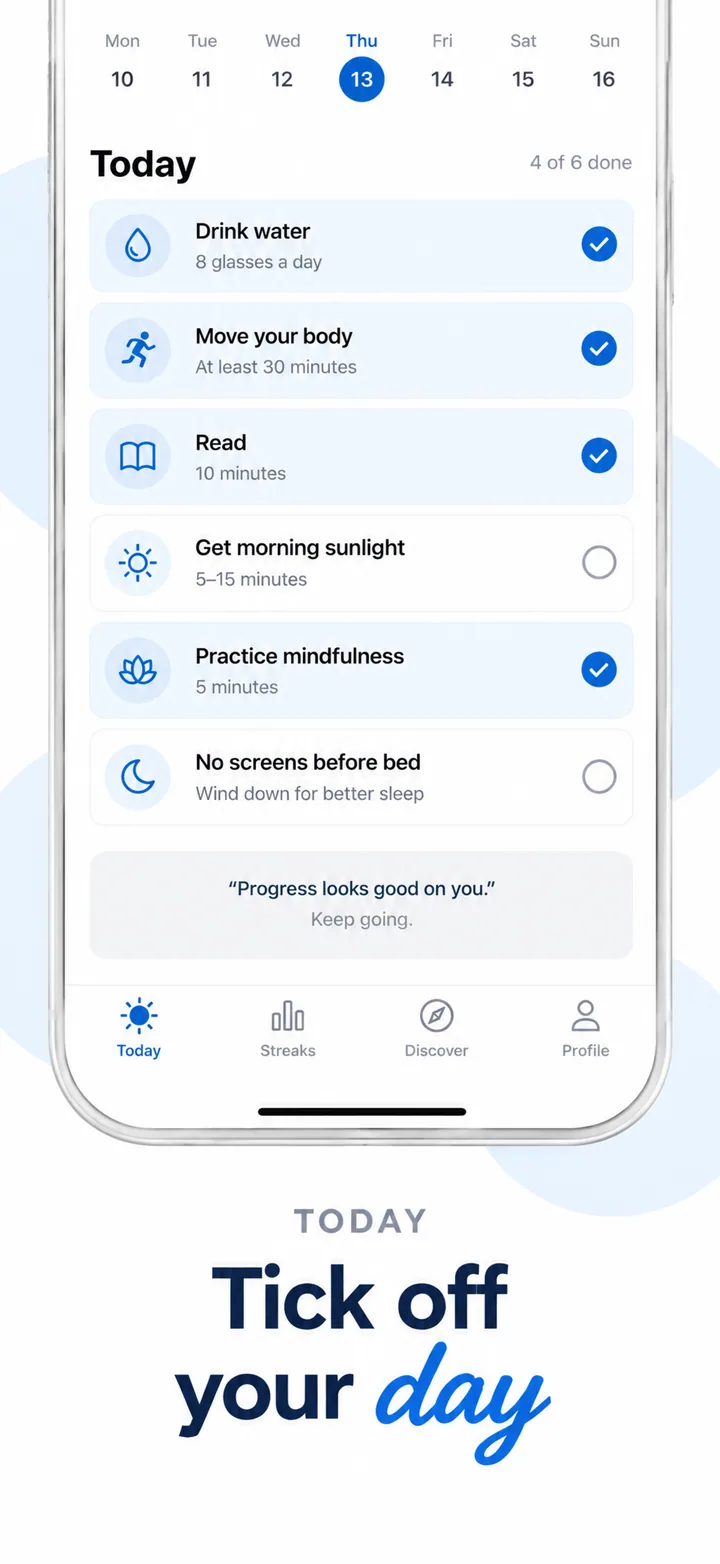
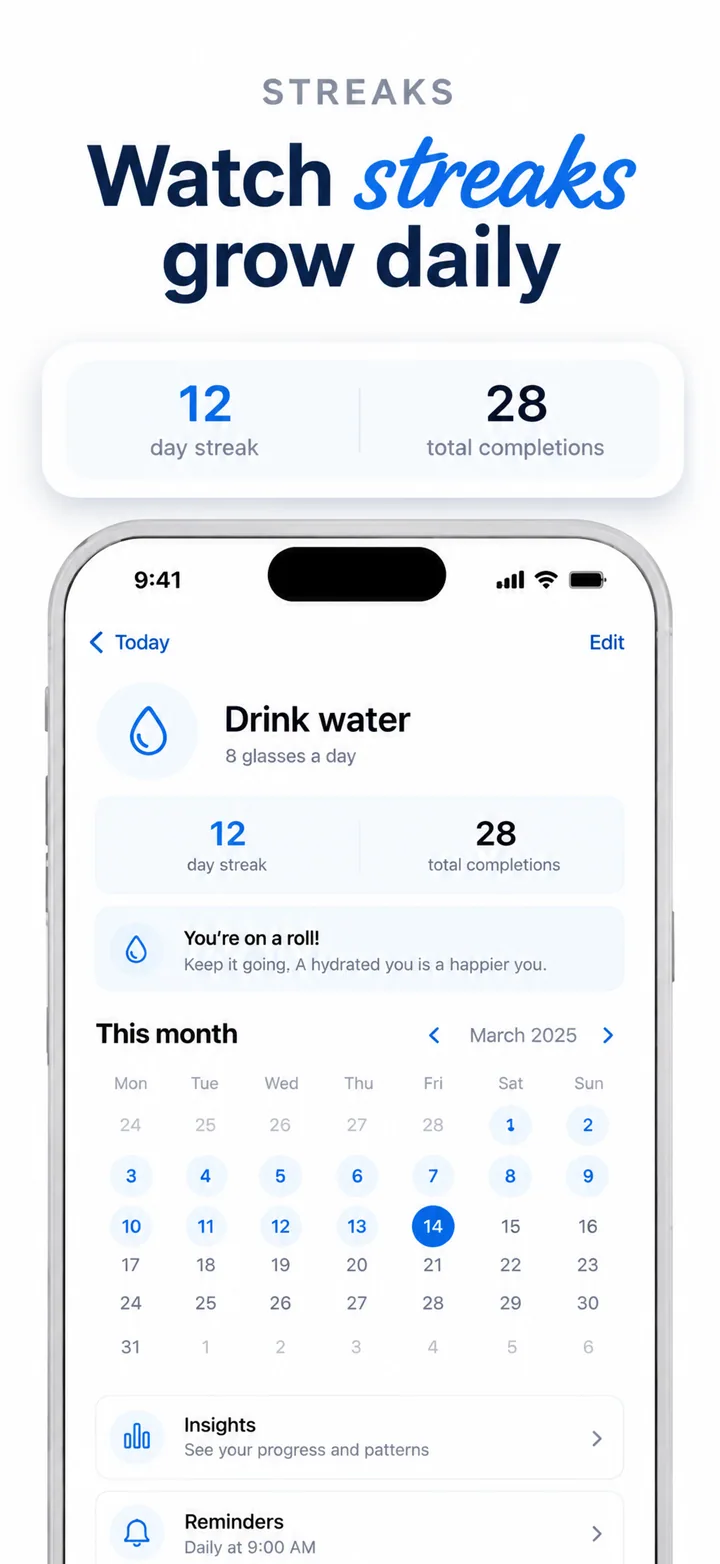
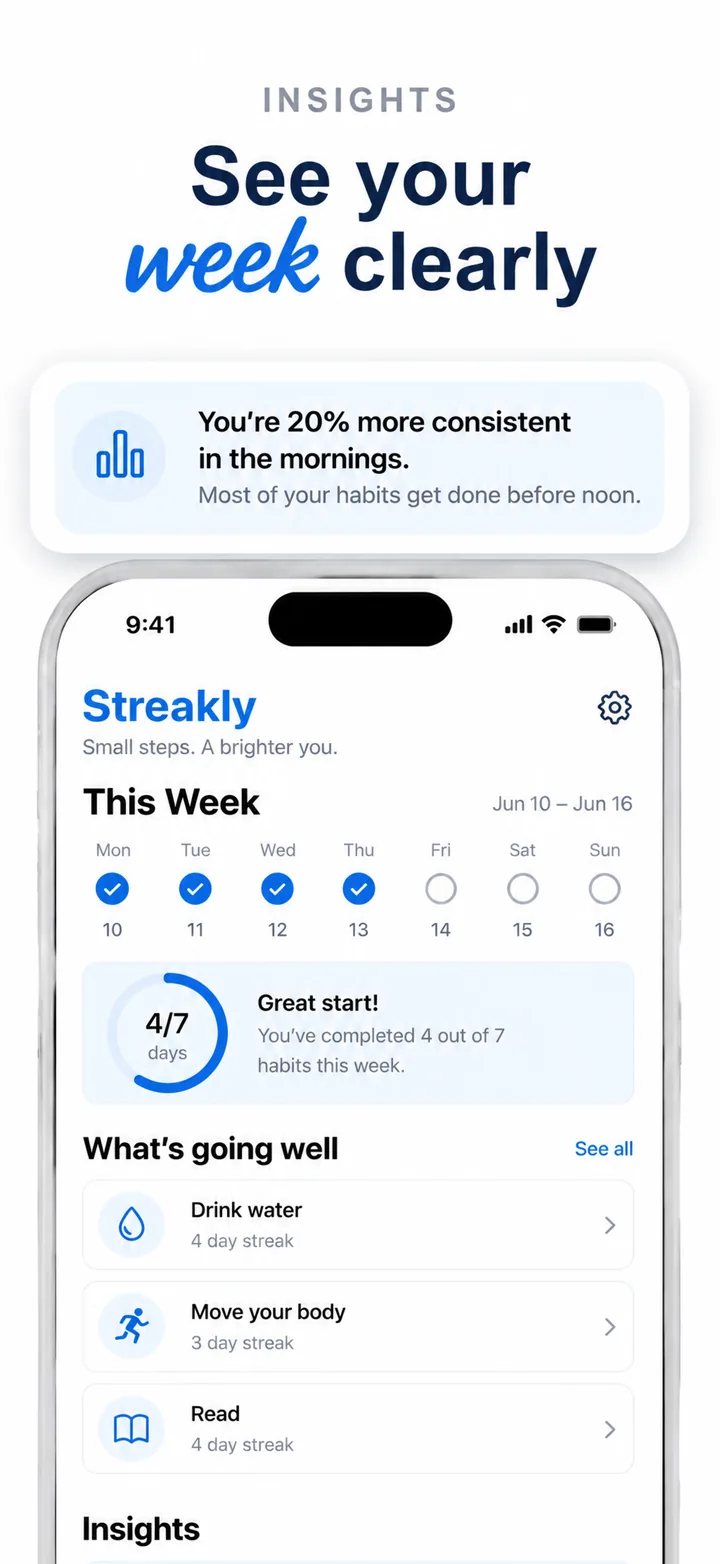
Specific layout advice: use a single brand color plus neutrals. Place the headline in the upper third with clean sans-serif typography. The phone frame should show the actual product UI — a recognizable analytics chart, a CRM pipeline, a ticket queue, or a pull request review. The UI must be legible at thumbnail size because enterprise buyers often view screenshots in search results or forwarded links.
Social proof and trust signals in SaaS are about ecosystem and scale. "Syncs with Slack," "Works with Notion," "Connects to Salesforce" — these integrations reduce adoption friction for teams. If you have enterprise customers, show a logo bar (with permission). If you have cross-device support, show the mobile-to-desktop handoff in frame 3 or 4. Buyers want to know that this mobile app is part of a complete system, not an isolated side project.
Best colors for SaaS apps
Color in SaaS screenshots communicates professionalism and brand maturity. The palette must look like it belongs in a boardroom, not a design studio.
Navy blue and slate grey are the enterprise standards. Navy signals authority, trust, and longevity — the same reasons it dominates B2B software. Slate grey adds a modern, neutral foundation that lets your product's UI colors stand out. These colors create the high-contrast, readable environment that enterprise buyers expect. Use navy for backgrounds, slate for cards and surfaces.
White and off-white create the clean, airy aesthetic that signals simplicity and focus. Most SaaS dashboards are white-dominant, so a white background feels native to the product category. It also ensures that colorful data visualizations, status badges, and UI elements pop without competing with the background.
One brand accent color — teal, purple, or green — adds identity without chaos. The key is restraint. A single accent color used consistently for buttons, highlights, and key data points creates brand recognition. Two or more accent colors signal immaturity and lack of design discipline. Choose one primary brand color and use it sparingly.
Dark mode minimal (near-black backgrounds with white UI and one accent) creates a premium tech aesthetic. It works for developer tools, analytics platforms, and advanced products targeting technical buyers. Dark mode signals sophistication and reduces eye strain — a subtle but valuable trust signal for power users.
Colors to avoid: Rainbow and multicolor palettes signal consumer playfulness, not enterprise reliability. Neon gradients signal startups that may not survive the next funding round. Bright red as a dominant color signals alarms and errors. Brown and earth tones feel sluggish and outdated. These colors reduce perceived enterprise value and increase buyer skepticism.
Common mistakes SaaS apps make
Even functional SaaS products lose downloads and evaluations to screenshot mistakes that signal amateurism. Here are the five most common errors.
Mistake 1: Overused "teamwork" imagery. Hands stacking in a circle. People in meetings looking at a whiteboard. Diverse groups smiling at laptops. Every SaaS tool uses these. They tell the buyer absolutely nothing about your specific product. Fix it: show the actual UI doing actual work. A real dashboard. A real workflow. A real data chart.
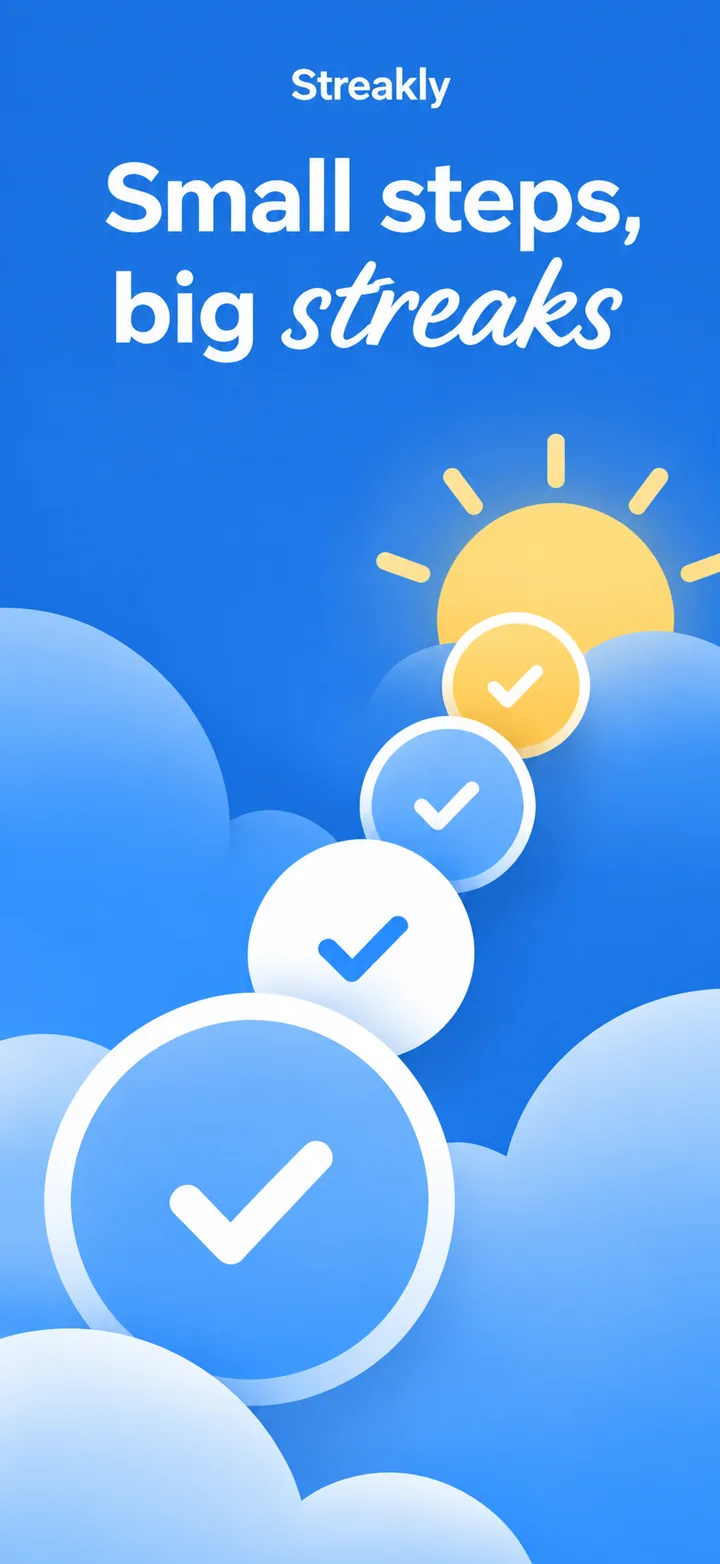
Mistake 2: Abstract metaphors. Gears turning. Clouds floating. Lightbulbs glowing. These signal that you have nothing concrete to show. Buyers cannot tell what your product does from a gear icon. Fix it: replace metaphors with product screenshots. If your app is a CRM, show the pipeline. If it is an analytics tool, show the chart.
Mistake 3: Buzzword-dense headlines. "AI-powered workflow automation platform for modern teams." This says nothing and applies to twenty other tools. Fix it: one specific workflow. "Review PRs from your phone." "Respond to tickets at the airport." "Sync with Slack. Done."
Mistake 4: Screenshots of settings or onboarding. Your admin panel is not your value prop. Your onboarding wizard is not your selling point. Fix it: every frame must show the product delivering value. Dashboards, completed workflows, shared reports, real data.
Mistake 5: Hiding the UI behind decorative chrome. A screenshot that is 70% gradient background and 30% blurred phone tells the evaluator you have something to hide. Fix it: make the phone frame prominent and the UI crystal clear. Enterprise buyers need to see the interface to judge whether it meets their needs.
How to create SaaS screenshots with AI
Nuvex understands that SaaS screenshots must signal enterprise credibility. The AI biases toward professional palettes, UI-prominent compositions, and headlines that describe specific workflows rather than generic category claims. You upload your app screens, describe the use case, and get five store-ready frames in about 30 seconds.
Step 1: Upload 3-5 screenshots of your actual app. Include the main dashboard, a detail view, and a mobile-specific workflow. These give the AI real UI to feature rather than inventing generic enterprise interfaces.
Step 2: In the prompt, describe the specific job-to-be-done, not the category. Write: "CRM for freelancers who manage client relationships on the go." Not: "CRM with contacts, deals, and pipeline management." The AI uses this to bias headlines toward specific outcomes.
Step 3: Review the five generated frames. Frame one should be the specific workflow hook. Frame two the core dashboard or feature. Frame three an integration or cross-device signal. Frame four outcome proof or social proof. Frame five a call-to-action or premium preview.
Step 4: Refine per frame. Click any frame and type "more professional background," "show the Slack integration," or "shorter headline." The AI regenerates just that frame while keeping the set visually coherent.
When you tell Nuvex "SaaS app" or "B2B app," the AI shifts toward professional palettes anchored on one brand color, UI-prominent compositions, and specific-workflow headlines. You get screenshots that signal desktop-grade credibility without the enterprise design agency budget.
Want SaaS screenshots that convert?
Try Nuvex — free to start, no credit card. Generate five store-ready frames in 30 seconds.
Frame-by-frame strategy for SaaS apps
The sequence of your screenshots must address two audiences simultaneously: the mobile user deciding to install and the enterprise evaluator judging your company's maturity. A narrative arc that moves from workflow proof to product depth to ecosystem credibility satisfies both. Random frames signal an unfocused product and an immature company.
Frame 1 — The workflow hook. This frame must answer: what specific job does this app do? Use a headline that describes a real use case, not a category claim. "Review PRs from your phone." "Close tickets in under 60 seconds." "Sync with Slack. Done." The phone should show the actual product doing that job — a pull request review, a ticket resolution, a notification sync. This frame appears in search results and must stop the scroll of a busy professional.
Frame 2 — The core dashboard. Show the primary interface in a recognizable state. A CRM pipeline with real deal names. An analytics chart with actual data points. A project board with cards in motion. The evaluator needs to see that the product is functional and well-designed. The mobile user needs to confirm they can get work done on a small screen. Both audiences judge this frame harshly.
Frame 3 — The integration signal. Enterprise buyers evaluate ecosystem fit. Show that your product connects to tools they already use. "Works with Salesforce." "Syncs with Notion." "Connects to GitHub." Integration badges, partner logos, or API connection screens all reduce perceived adoption friction. This frame answers the objection: "will this fit our existing stack?"
Frame 4 — The cross-device proof. SaaS mobile apps are companions to desktop products. Show the same task on both devices — a comment written on mobile appearing on desktop, a report viewed on tablet and edited on laptop. "Same data. Any device." This frame signals that the mobile app is not an afterthought but part of a complete system.
Frame 5 — The enterprise trust signal. End with social proof or security validation. "SOC 2 Type II certified." "Trusted by 500+ teams." "GDPR compliant." The frame should feel like a final reassurance, not a sales pitch. If you have a free trial, make it prominent: "14-day free trial. No credit card." The goal is to make the next step feel safe and obvious.
Test this sequence by showing frame 1 to a product manager who has never heard of your app. Ask them to describe what it does in ten words. If they describe a category rather than a workflow, the hook is too generic. Then show all five frames to an IT evaluator and ask if they would approve the app for their team. If integration and security signals do not address their concerns, those frames need more specific proof.
Frequently asked questions
What should SaaS app screenshots show? SaaS screenshots should show real dashboards and workflows, not abstract illustrations or teamwork stock photos. A recognizable analytics chart with actual data points, a CRM pipeline with real deal names, or a ticket queue with authentic ticket subjects converts better because it proves the product is functional. Enterprise buyers and mobile users both need to see the actual interface to judge whether it meets their needs. Metaphors and lifestyle imagery tell them nothing.
What colors work best for SaaS apps? Navy blue and slate grey are the enterprise standards because they signal authority, trust, and longevity. White and off-white create the clean, airy aesthetic that most SaaS dashboards use natively. One brand accent color — teal, purple, or green — adds identity without chaos. Dark mode minimal creates a premium tech aesthetic for developer tools and analytics platforms. Avoid rainbow and multicolor palettes because they signal consumer playfulness, not enterprise reliability, and avoid neon gradients because they signal immaturity.
How many screenshots should a SaaS app have? Five screenshots is the optimal number. Frame one should show the specific workflow hook that answers what the app does. Frame two the core dashboard or feature in action. Frame three an integration signal that proves ecosystem fit. Frame four outcome proof or social validation. Frame five a low-risk call to action or free trial invitation. This arc addresses buyer objections in the exact order they evaluate them.
Should SaaS screenshots show the desktop product? Frame 3 or 4 should show cross-device continuity whenever possible. Displaying the same task on mobile and desktop — a comment written on phone appearing on laptop, a report viewed on tablet and edited on desktop — signals that the mobile app is not an afterthought but part of a complete system. This addresses the primary concern of enterprise evaluators: will this mobile companion actually sync with the desktop tool my team already uses?
What text should I put on SaaS screenshots? Use specific workflow headlines: "Review PRs from your phone," "Close tickets in under 60 seconds," "Sync with Slack. Done." These headlines work because they describe a real job-to-be-done rather than a category claim. Avoid buzzwords like "AI-powered workflow automation platform" because they say nothing and apply to twenty other tools. Be specific or be ignored.
Do SaaS apps need different screenshots for iOS and Android? Core creative should remain consistent across platforms. iOS screenshots can emphasize Face ID, widgets, Handoff, and Apple Watch integration because these signal enterprise-readiness to iPhone users. Android screenshots can highlight deep linking, notification channels, and widget support. The workflow headline, color palette, and primary dashboard should remain identical, but platform-specific trust signals increase conversion by proving native integration.
How do I make SaaS screenshots look professional? Use one brand color plus neutrals to create a restrained, mature palette. Show the real UI clearly with legible data and recognizable workflows. Write specific headline copy that describes a job-to-be-done. Include integration badges or partner logos that signal ecosystem fit. Avoid stock teamwork imagery like hands stacking or people in meetings. Test dark-mode variants because many enterprise users browse app stores at night, and a polished dark theme signals sophistication.