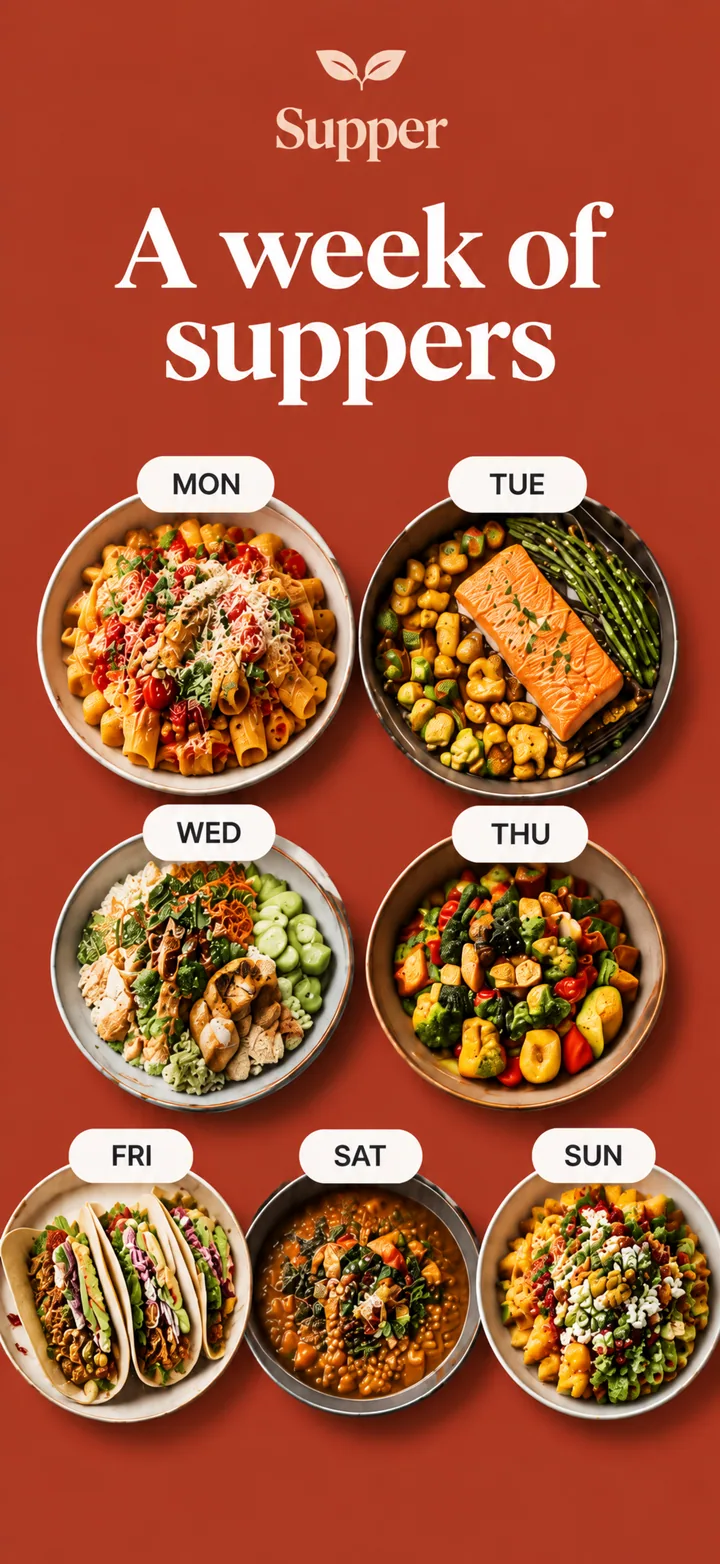
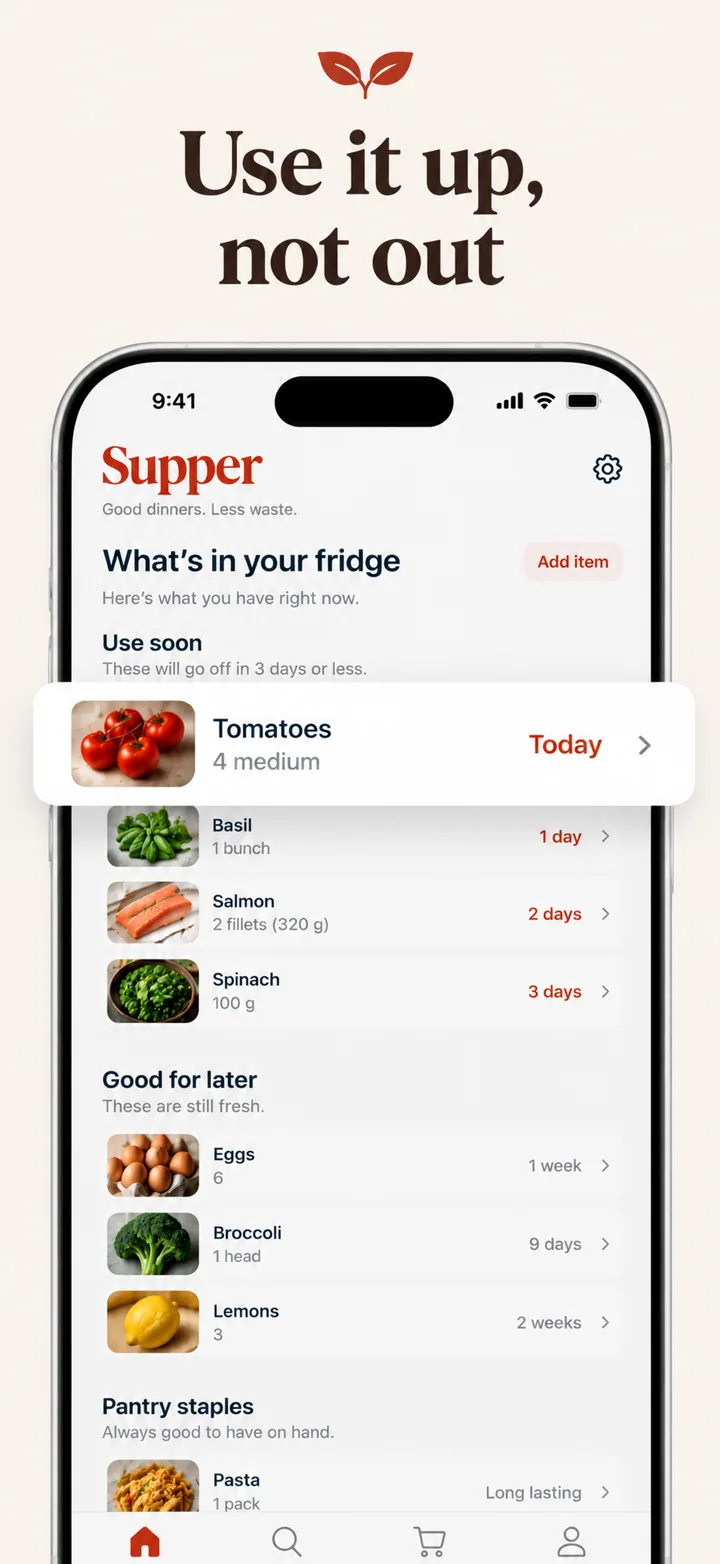
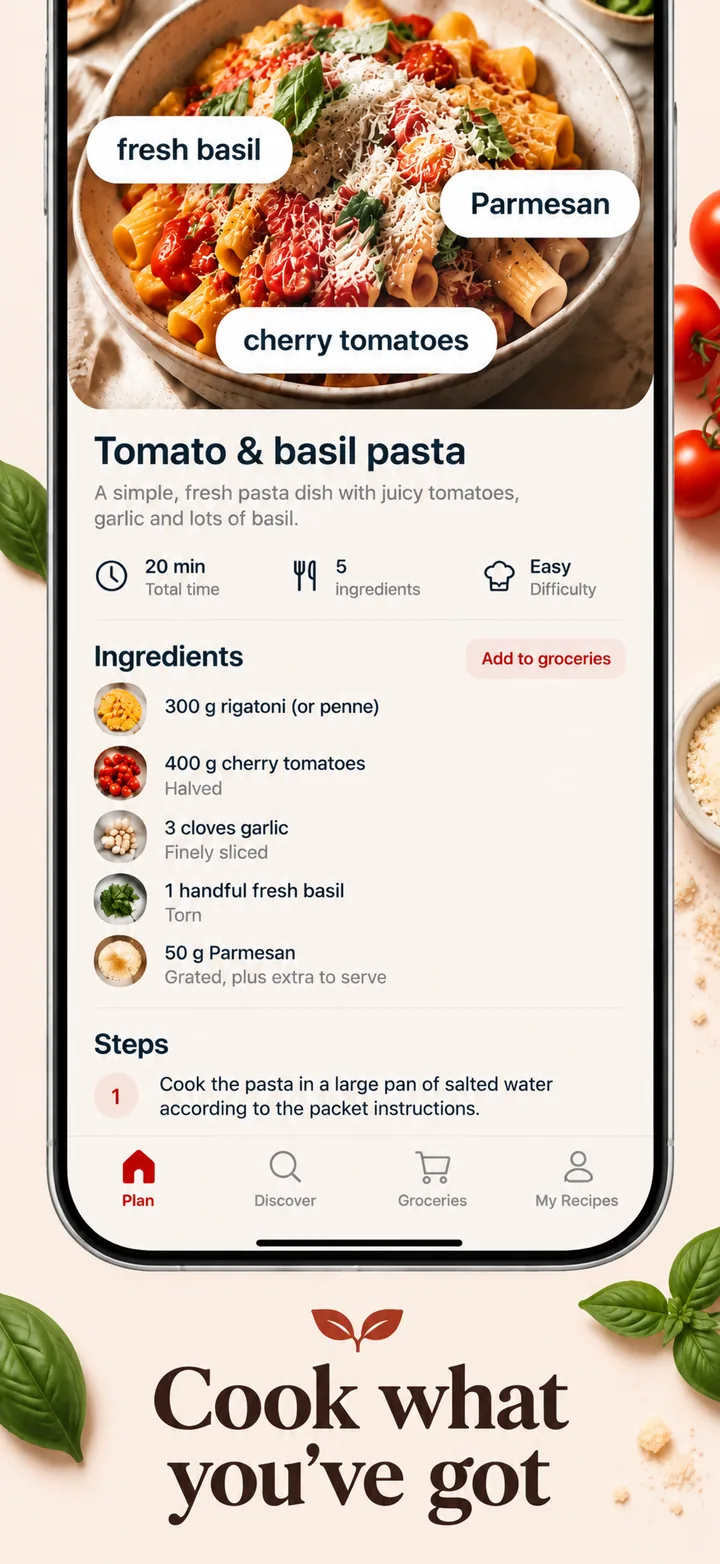
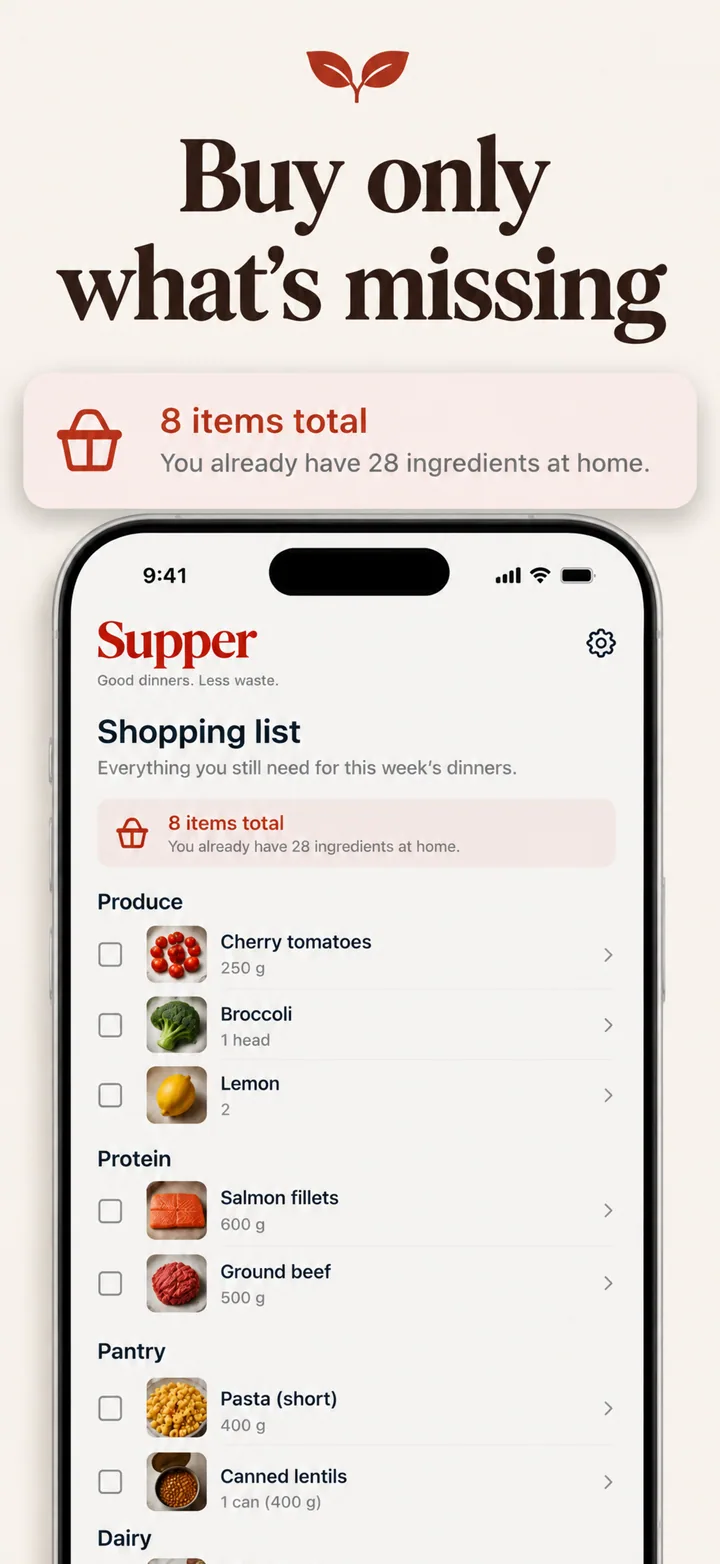
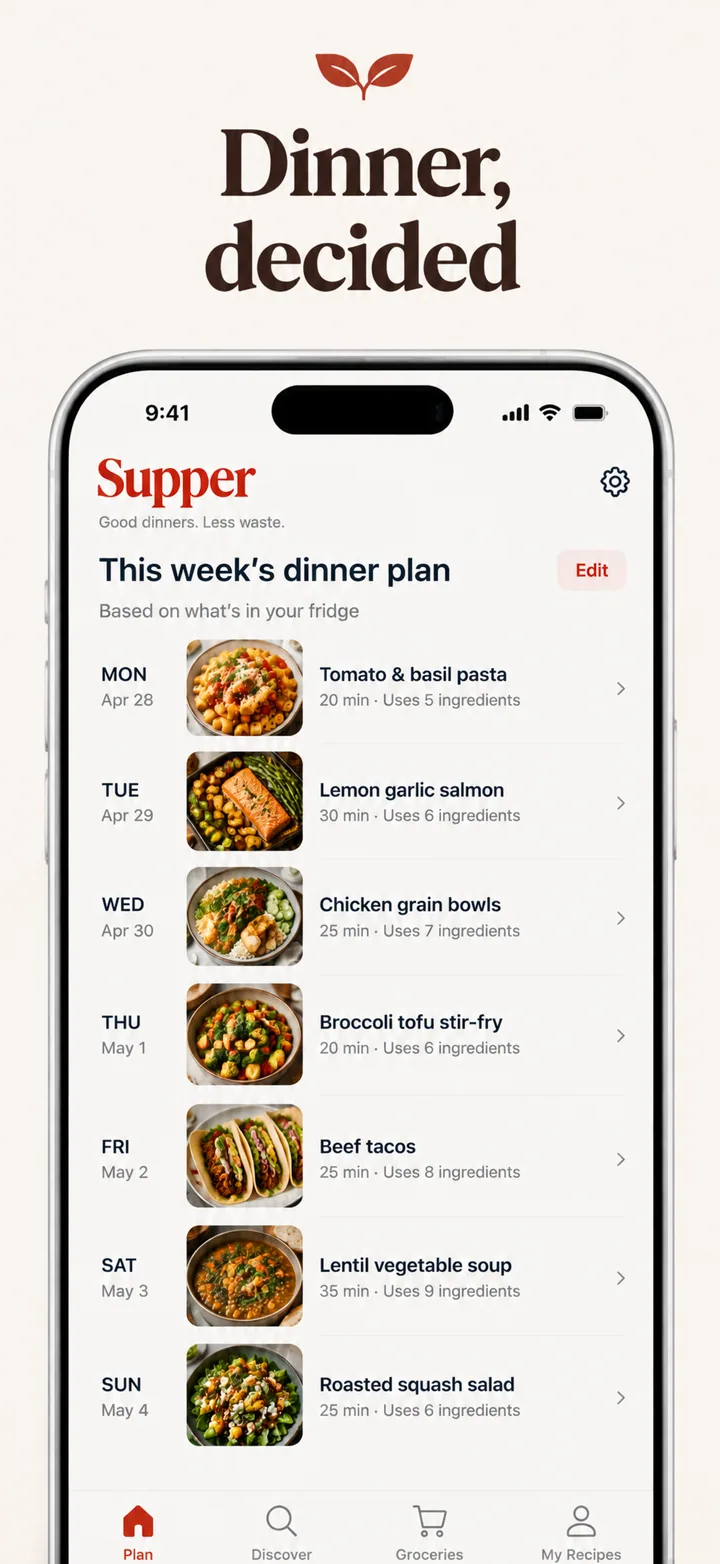
Why screenshots matter more than you think
App Store screenshots are the single highest-leverage design asset for an app. The first two or three screenshots appear inline in search results, meaning most users decide whether to tap your listing without ever visiting the product page. Apple's own research has consistently shown that screenshot quality moves install conversion rate by 2-3x between a weak and a strong set.
A great screenshot set does four things at once: it communicates the app's core value, establishes visual trust, differentiates the app from direct competitors in the search results grid, and uses typography to stay legible at thumbnail size.
Most apps fail at this because they pick a template, drop in their screens, and ship. The template tells you nothing specific about your app. Every app built on the same template looks like every other app built on the same template — which is exactly the "generic" look users scroll past.
The 7-step workflow
This is the fastest path from "app is ready, listing is empty" to "listing is live."
Step 1 — Capture raw screens
Take screenshots at the largest required dimension for each store. One screen at a large size can be downscaled for smaller sizes without quality loss. For iOS, use the Simulator with ⌘S on a 6.9-inch iPhone (1290×2796). For Android, use the Emulator or a real device at 1080×1920 or higher.
You do not need every in-app screen — just the five that will be featured. Capture cleanly: remove notification badges, use realistic (not obviously fake) user data, and avoid status bar clutter.
Step 2 — Pick the 5 screens that tell your story
A five-frame set is a five-beat story. The standard beats:
- Hook — the core value in one frame. Biggest headline. Most striking visual.
- Feature — the single feature that matters most.
- Differentiator — what sets you apart from the three competitors next to you in search results.
- Trust — social proof, security, scale, or a unique credential.
- Call to action — "Try it free," "Join 10K users," or a specific next step.
Step 3 — Write a one-line app description
Plain English, 10-20 words. This single sentence drives every headline, color decision, and tone choice downstream. Examples that work:
- "A workout tracker for people who exercise at home with no equipment."
- "Bank-grade budgeting for couples who share finances."
- "Turn-based chess with real-time AI coaching."
Examples that do not work: adjective soup ("beautiful, powerful, elegant productivity app"), vague categories ("the ultimate lifestyle app"), or marketing word salad ("revolutionize your workflow with AI-powered").
Step 4 — Generate a designed set with Nuvex
This is where a template tool and an AI tool diverge sharply.
Using Nuvex: sign up (6 free credits, no credit card — enough for three trial frames at Low quality), create a project, upload your five screens, paste your one-line description, click Generate. ~30 seconds later you have a fully designed five-frame set with custom backgrounds, headlines the AI wrote for your specific app, and typography picked to match the category and tone.
Using a template tool: browse 40 layouts, pick one, drag your screens into slots, type headlines by hand, manually adjust colors. Expect 1-2 hours per set, per localization.
Step 5 — Refine per-frame
No AI generation is perfect on the first pass. The right question is not "how do I regenerate from scratch?" but "how do I fix just the one frame that is wrong?"
Nuvex's per-frame refine lets you click a frame and type a specific instruction: "make the headline shorter," "use a darker background," "move the device right." Only that frame re-renders. The four that were already good stay exactly as they were.
Step 6 — Export every required dimension
App Store Connect and Google Play Console require specific pixel sizes. Nuvex auto-exports all of them. See the complete sizes table below or the dedicated pages for App Store sizes and Google Play requirements.
Step 7 — Upload and test
Upload to App Store Connect (for iOS) or Google Play Console (for Android). Once live, use Apple's Product Page Optimization or Google's Experiments to A/B test screenshot order and different first frames. A/B tests at Apple/Google scale typically need 2-4 weeks to reach significance.
Exact sizes Apple and Google require
Apple changes requirements periodically. Google's are more permissive but have their own quirks. Current as of May 2026:
Apple App Store (iPhone)
| Display | Portrait | Landscape |
|---|---|---|
| 6.9-inch (iPhone 16 Pro Max) | 1290 × 2796 | 2796 × 1290 |
| 6.7-inch (iPhone 14/15 Plus) | 1290 × 2796 | 2796 × 1290 |
| 6.5-inch (iPhone 11 Pro Max) | 1242 × 2688 | 2688 × 1242 |
| 6.1-inch (iPhone 14 Pro) | 1170 × 2532 | 2532 × 1170 |
| 5.5-inch (iPhone 8 Plus, legacy) | 1242 × 2208 | 2208 × 1242 |
Apple App Store (iPad)
| Display | Portrait | Landscape |
|---|---|---|
| 13-inch iPad Pro M4 | 2064 × 2752 | 2752 × 2064 |
| 12.9-inch iPad Pro 6th gen | 2048 × 2732 | 2732 × 2048 |
| 11-inch iPad Pro 4th gen | 1668 × 2388 | 2388 × 1668 |
Google Play
| Asset | Size | Notes |
|---|---|---|
| Phone screenshot (min) | 320 px on min side | Max 2x ratio between sides |
| Phone screenshot (recommended) | 1080 × 1920 or 1080 × 2340 | JPEG or 24-bit PNG |
| 7-inch tablet screenshot | 1080 × 1920 and up | Optional, recommended |
| 10-inch tablet screenshot | 1080 × 1920 and up | Recommended for tablet-ready apps |
| Feature graphic (required) | 1024 × 500 | JPEG or 24-bit PNG, no alpha |
| App icon (hi-res) | 512 × 512 | 32-bit PNG with alpha |
For the complete reference including Mac and watchOS, see App Store screenshot sizes and Google Play screenshot requirements.
Six design principles that move the install rate
- Legible at thumbnail size. The typical user sees your first screenshot at ~200 px wide in search results. If your headline is not readable at that size, it does not exist. Minimum effective headline: 40pt at design size.
- One idea per frame. Do not stack three features on one screenshot. Each frame says one thing.
- High contrast backgrounds. Flat pastels blend into the App Store UI. Use bold gradients, photographic backgrounds, or strong solid colors with ink-on-cream-type contrast.
- Device in frame, not floating. Showing your app inside a device bezel increases credibility over showing the UI floating on a background. Keep the device frame subtle — not a dated iPhone 6.
- Localize beyond language. A Japanese user's expectations for a fintech app differ from a US user's. Regenerate screenshots per market, not just translate them.
- Consistency across frames. All five frames must feel like one set. Same typographic system, same palette family, same composition logic.
Headline formulas that work
Five formulas you can copy directly, with examples:
- Verb + object. Track your runs. / Split bills fairly.
- Result stated plainly. Save $300 a month. / Sleep better by Sunday.
- Specific number. 10,000 recipes. Zero ads. / Under 2 minutes to your first workout.
- Who it's for. Built for night owls. / Made for couples who argue about money.
- Differentiator framed as a question. Why use three apps when one works? / What if your bank was boring?
Avoid: "The best app for X" (every app claims this), buzzword stacks ("AI-powered smart productivity"), and version references ("Now with Dark Mode 3.0").
Seven mistakes to avoid
- Using actual "Lorem ipsum" data in screenshots. It reads as "not finished."
- Showing the splash screen as screenshot #1. Your splash screen is not your value prop.
- Headlines longer than 6 words. Thumbnail legibility falls off a cliff past 6 words.
- Dated device frames. Shipping a 2026 app with an iPhone 8 frame signals "not current."
- Too many colors per frame. Pick a 2-color palette per frame. Let the app screen inside the device carry its own colors.
- Forgetting Google Play's feature graphic. Required for all Android apps. Easy to miss because it is a different asset from screenshots.
- Skipping localization. If you have the budget, localize to your top 3 markets' screenshots, not just metadata.
Comparison of tools
| Tool | Approach | Per-frame refine | Time to set | Free trial |
|---|---|---|---|---|
| Nuvex | AI composition | Yes | ~30 sec | 3 credits free |
| Template tools (generic) | Fill-in-blank | No | 1-2 hours | Limited |
| Figma + designer | Custom design | Yes | Days | No ($500+) |
| DIY in Photoshop | Fully manual | Yes | A weekend | If you own PS |
Deeper comparisons: vs Screenshots.pro, vs AppMockUp, vs Previewed, vs Picasso, all alternatives.
FAQ
How many screenshots should I upload?
Upload the maximum (10 on iOS, 8 on Google Play), but design 5 premium frames and let the rest be supporting material. The first 3 are what matter.
Should screenshots be in portrait or landscape?
Portrait for phone apps unless your app is specifically landscape-oriented (a video editor, a game). App Store shows more portrait screenshots inline in search; landscape is cropped.
Can I use Nuvex screenshots commercially?
Yes. Every screenshot generated by Nuvex is yours to use on App Store Connect, Google Play Console, marketing pages, paid ads, and physical materials.
Do I need to refresh screenshots for every iOS release?
Only if your app's UI changed substantially. Apple automatically uses the highest-resolution set you've uploaded to generate previews for smaller devices.
How long does it take with Nuvex vs a designer?
Nuvex: ~30 seconds to generate, another few minutes to refine. Designer: 3-5 business days for a first draft, $300-$800 per set.
What is the best tool to check screenshot dimensions?
Use the free Nuvex Screenshot Dimension Checker to validate your images against Apple and Google specs before upload. It reads width and height via JavaScript and shows a verdict per platform.
How do I design screenshots for a specific app category?
Category-specific advice matters. See our detailed guides for fitness, fintech, gaming, productivity, and SaaS apps. Each covers category-specific colors, layouts, and common mistakes.
Try it yourself — 6 free credits
Generate a full 5-frame set in about 30 seconds. No credit card. See how different a non-template set looks.