Last updated June 2026
Quick answer
Music app screenshots must communicate atmosphere and sonic identity within the first two seconds of viewing. Music is an emotional and deeply personal category; users do not choose music apps based on feature checklists but on whether the app feels like it understands their taste and enhances their listening ritual. Your first screenshot should show a beautiful now-playing interface, a dynamic waveform visualization, or a curated playlist cover that captures a specific mood. The visual tone should feel immersive and rhythmic, using color and motion to suggest sound even in a still image. Avoid sterile screenshots that show file directories, equalizer sliders, or generic grey media players that could belong to any decade.
What makes music screenshots convert
Music is perhaps the most emotionally saturated category in the App Store. Users are not solving a problem; they are seeking an experience. Your screenshots must function as visual album art that sells a feeling rather than a utility.
Your first screenshot must present a listening experience that feels visceral. A dark screen with a glowing waveform, a vinyl record spinning in a beautifully rendered player, or a bold typographic playlist title against a color field all create immediate atmosphere. A screenshot showing a file browser or a settings menu creates immediate boredom. The principle is simple: lead with the soundscape, not the toolbox. Users want to know how the app will feel when they are lying in bed at midnight with headphones on.
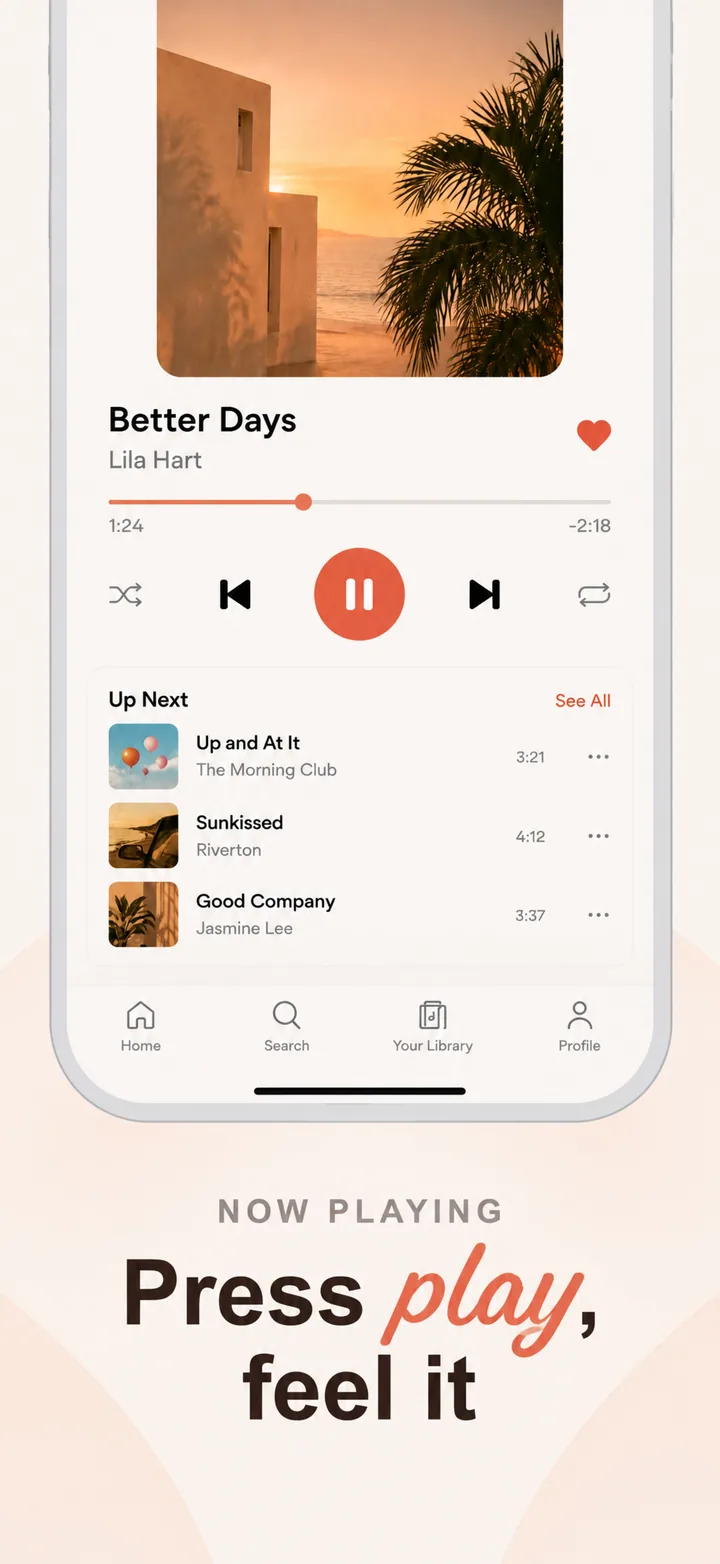
The visual psychology of music screenshots leans heavily on darkness and glow. Music listening is often an intimate, nighttime, eyes-closed activity. Bright, white-background screenshots feel like office software, not a sonic sanctuary. The best music screenshots use deep backgrounds with luminous accents, large album art or visualizers, and minimal chrome. Your layout should typically feature a device frame showing a now-playing screen that dominates the visual field, with a short headline that names the emotional promise: "Your perfect playlist." "Sound that surrounds you."
Social proof in music apps operates through curation credibility and community scale. "Used by 2 million producers" is powerful for a DAW. "Loved by audiophiles" is powerful for a hi-fi player. A screenshot showing a user review snippet from a known artist or a playlist follower count signals that the app has cultural legitimacy. For creation tools, showing a small grid of tracks made with the app converts better than generic star ratings because it proves the tool actually produces finished music.
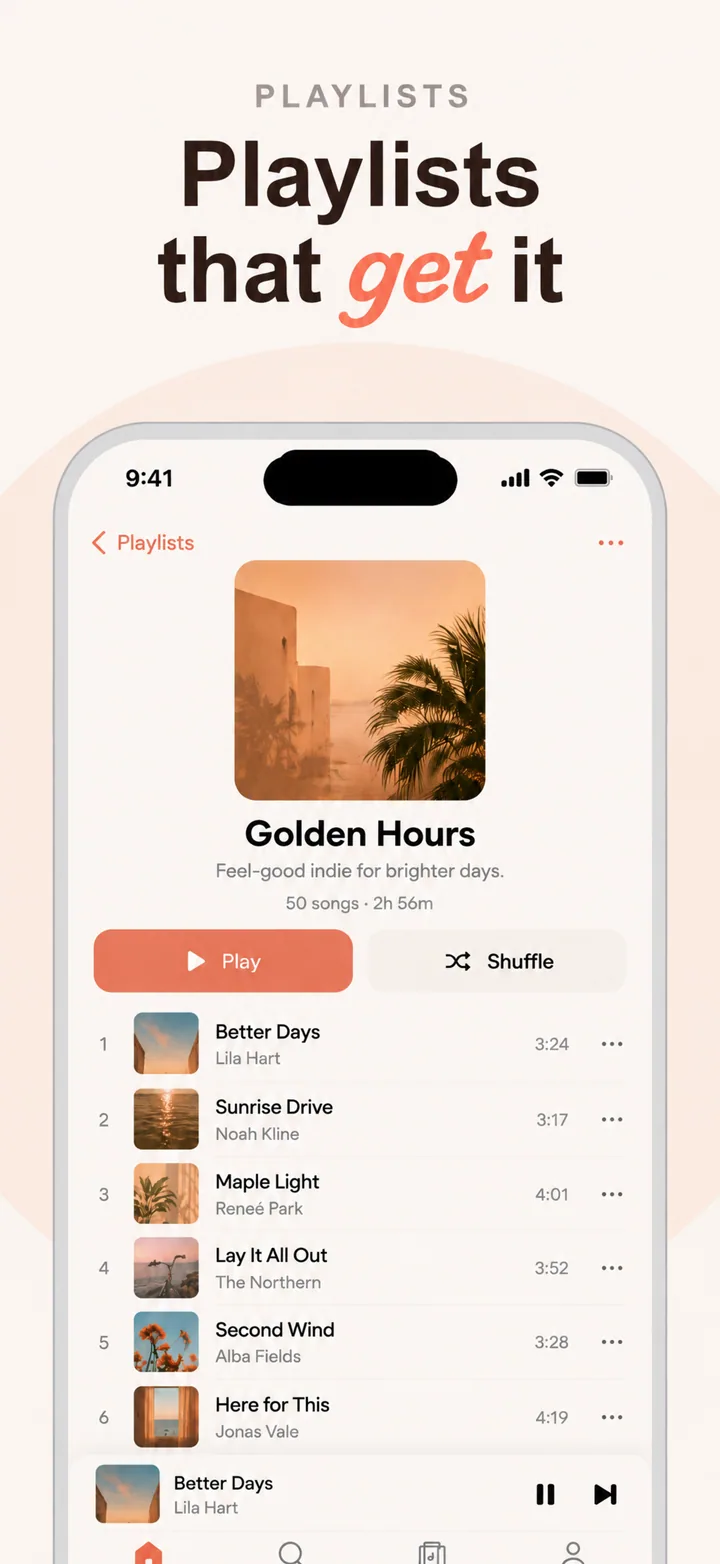
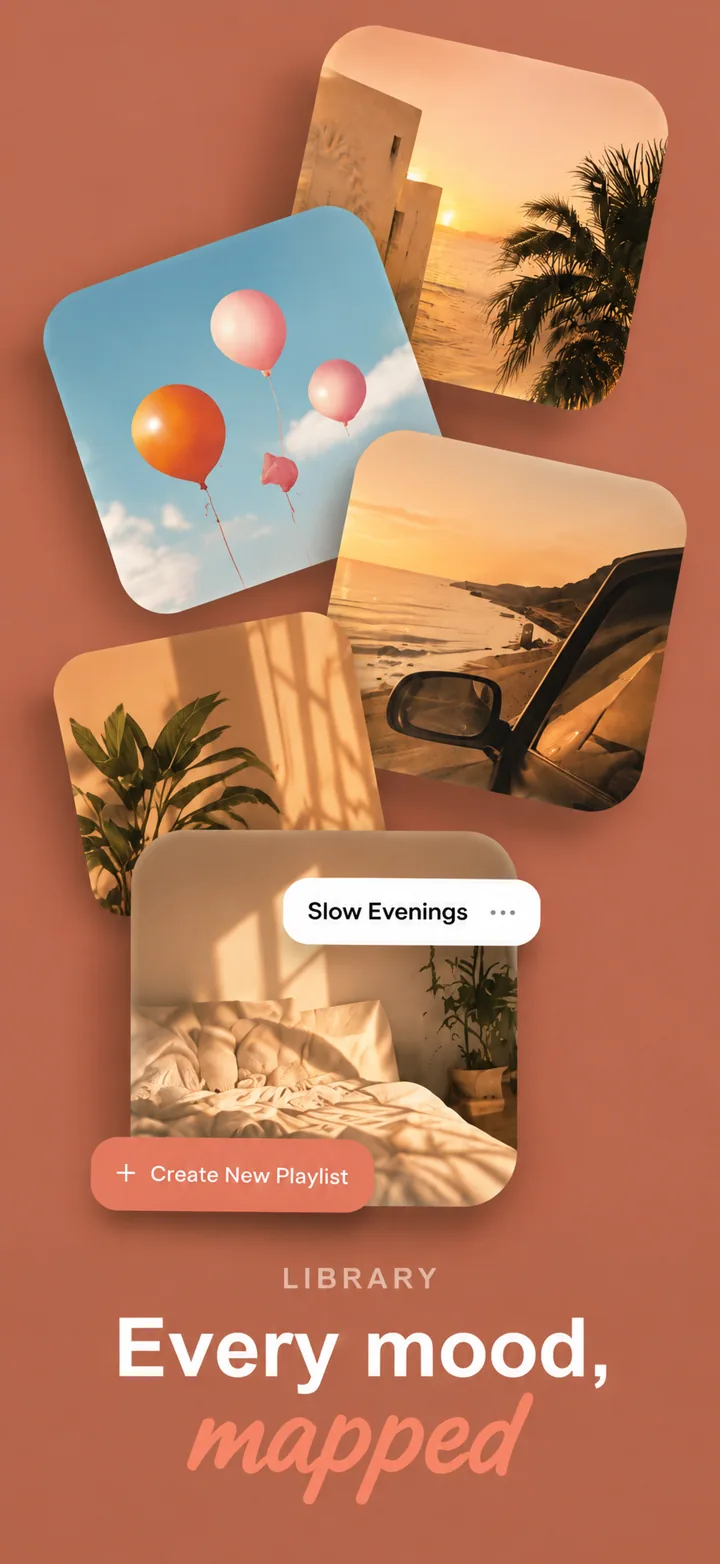
Layout advice for music screenshots: frame one is the vibe. Show your most atmospheric listening or creation screen. Frame two shows discovery: playlists, radio, or recommendation engines. Frame three shows creation or tools: instruments, mixing, or EQ. Frame four shows library or organization features. Frame five closes with offline, audio quality, or social sharing. This arc moves the user from emotion to exploration to capability.
Best colors for music apps
Music color psychology is about atmosphere. The palette you choose should feel like the visual equivalent of a genre, a venue, or a listening session.
Deep purple and ultraviolet are the most iconic colors for music and creativity apps. Purple has long been associated with artistry, nightlife, and creative expression. A streaming app or a synth tool using deep purple backgrounds feels like a late-night club or a studio after hours. This palette signals that the app is for people who take music seriously, whether as listeners or creators.
Electric blue and cyan are ideal for electronic, ambient, and hi-fi music apps. Blue signals technology, precision, and immersion. A spatial audio app or a DJ mixing tool using electric blue accents feels futuristic and precise. Cyan waveforms against dark navy backgrounds create a classic visualization aesthetic that users instantly associate with sound and frequency.
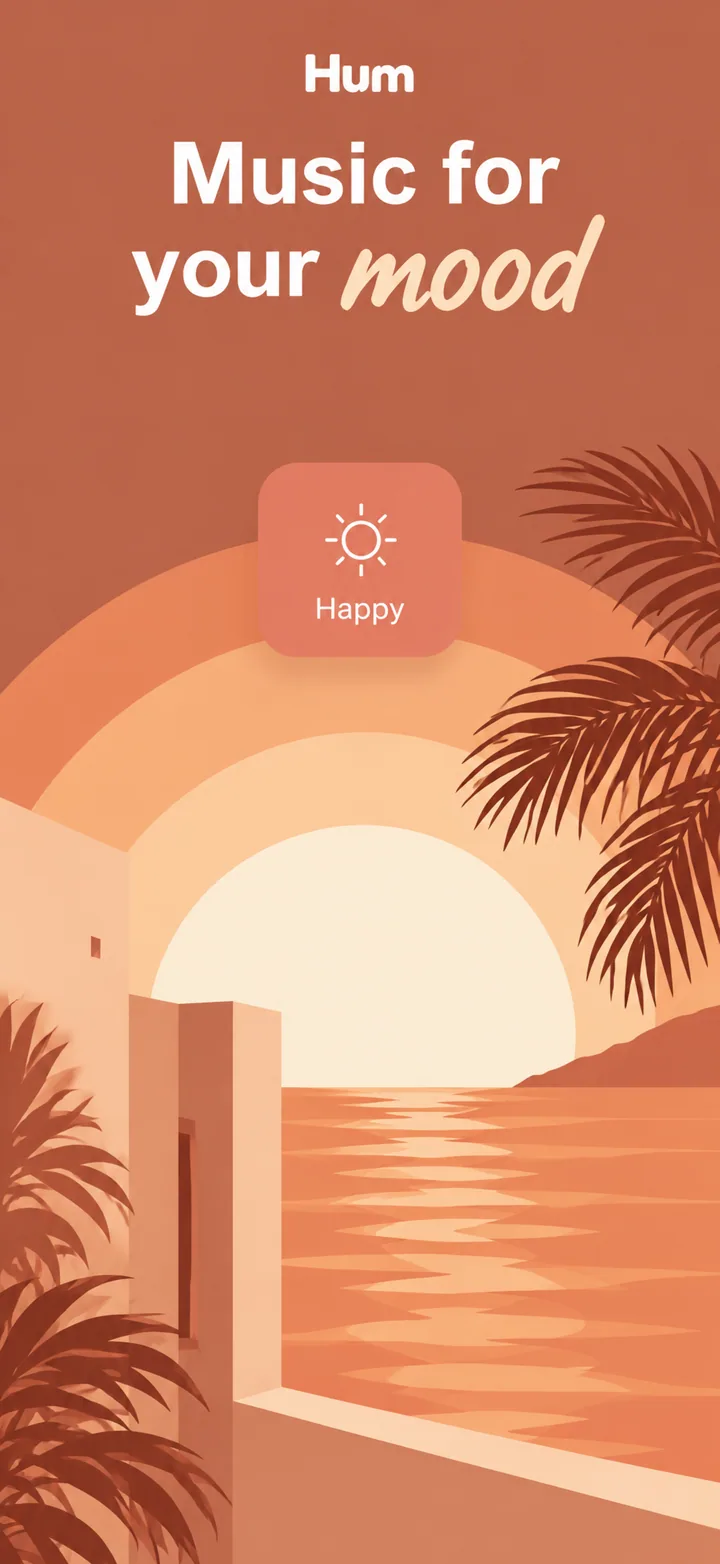
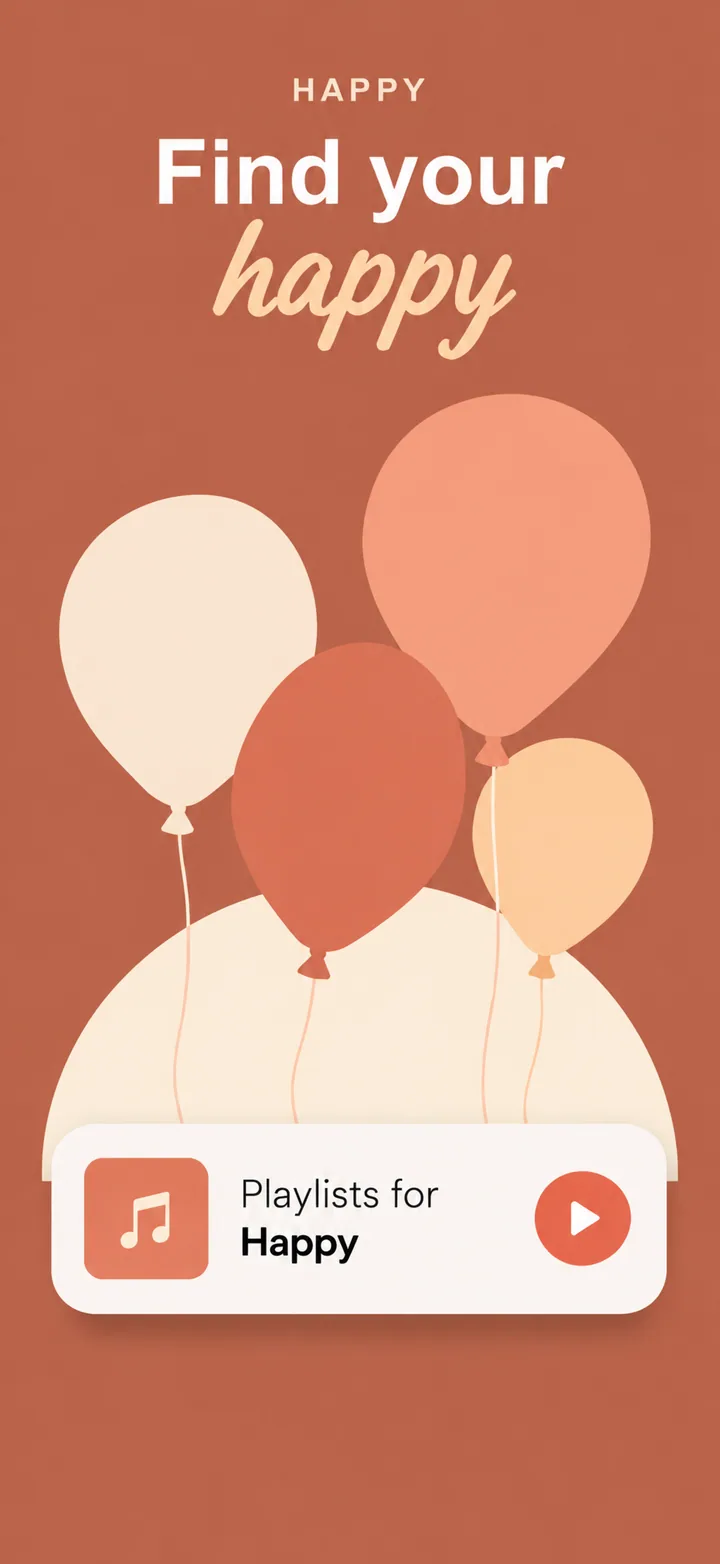
Warm orange and amber work exceptionally well for acoustic, jazz, classical, and warm-sounding music apps. Orange signals warmth, analog equipment, and vintage authenticity. A vinyl emulator or a jazz streaming app using amber accents feels like tube amplifiers and wood-paneled listening rooms. This palette attracts users who value warmth and organic sound over clinical digital precision.
Dark charcoal and black are the strongest backgrounds for premium and minimalist music apps. Black is the absence of light, which means it puts zero visual competition between the user and the music. A high-end audio player using pure black with subtle grey text feels like a concert hall with the lights down. This palette signals exclusivity and focus, justifying premium pricing.
Colors to avoid: Bright, saturated primaries feel childish and cheap in music contexts. A music app with a bright yellow background looks like a children's toy, not a serious listening tool. Muddy browns and olive greens feel dated and musty, suggesting old technology rather than timeless taste. Avoid heavy use of red unless you are targeting aggressive genres like metal or punk, as red can feel stressful in extended browsing sessions.
Common mistakes music apps make
Music apps often suffer from an identity crisis in their screenshots: they are unsure whether to sell emotion or utility, and they end up selling neither.
Mistake one: leading with file management. A screenshot showing a folder tree, a file import dialog, or a local library scan is the music equivalent of showing an empty restaurant kitchen. Users do not download music apps to organize files; they download them to feel something. Fix this by leading with the listening or creation experience. Move library management to later frames where it serves power users without boring casual browsers.
Mistake two: using default system UI elements. A music player that looks exactly like the stock iOS Music app or Android Media Player gives users no reason to switch. If your screenshot could be mistaken for a built-in app, you have failed to differentiate. Fix this by developing and showcasing a distinctive visual identity: custom typography, unique waveform styles, or novel layout approaches that make the app instantly recognizable.
Mistake three: ignoring genre context. A death metal fan and a classical pianist have opposite aesthetic expectations, yet many music apps use identical generic screenshots across all genres. A screenshot with a pastel gradient and a pop album cover will alienate metal fans. A screenshot with dark gothic imagery will alienate casual pop listeners. Fix this by either targeting a specific genre aesthetic or using abstract visuals that feel genre-neutral, such as pure waveforms or geometric visualizers.
Mistake four: overcrowding with technical specs. "FLAC, ALAC, OGG, 192kHz, gapless playback" is impressive to audiophiles but meaningless to 90 percent of users. Technical specifications belong in the description, not the screenshots. Fix this by using emotional language in your screenshot headlines and reserving technical details for the product page text or a single dedicated frame.
Mistake five: static screenshots for dynamic apps. Music is time-based and dynamic, yet screenshots are still images. A flat screenshot of a paused player feels lifeless. Fix this by using screenshots that suggest motion: waveforms mid-oscillation, equalizer bars in active states, or blurred transitions between screens. Even in static images, implied motion creates a sense of living sound.
How to create music screenshots with AI
Creating music app screenshots with Nuvex lets you focus on sound while the AI handles the visual atmosphere.
Step one: Upload your most atmospheric screens: now-playing interfaces, visualizers, playlist covers, and instrument panels. Avoid file browsers, settings menus, and import dialogs. The AI needs to see the soul of your app.
Step two: Describe your app with musical specificity. Instead of "music app," write "ambient sleep music player with generative soundscapes and adaptive binaural mixing for insomnia relief." Nuvex uses this to select atmospheric palettes, mood-appropriate headlines, and dark immersive layouts.
Step three: Generate five frames. The AI automatically biases toward dark, atmospheric layouts with emotion-driven headlines and minimal chrome. Frame one typically shows your most evocative listening or creation screen.
Step four: Refine per frame. "Make frame 1 background deeper purple" or "Add a waveform accent to frame 2." Each frame regenerates independently while maintaining set cohesion.
Step five: Export in exact App Store and Google Play dimensions. Download and upload to your store listings.
Want music screenshots that convert?
Try Nuvex — free to start, no credit card.