Last updated June 2026
Quick answer
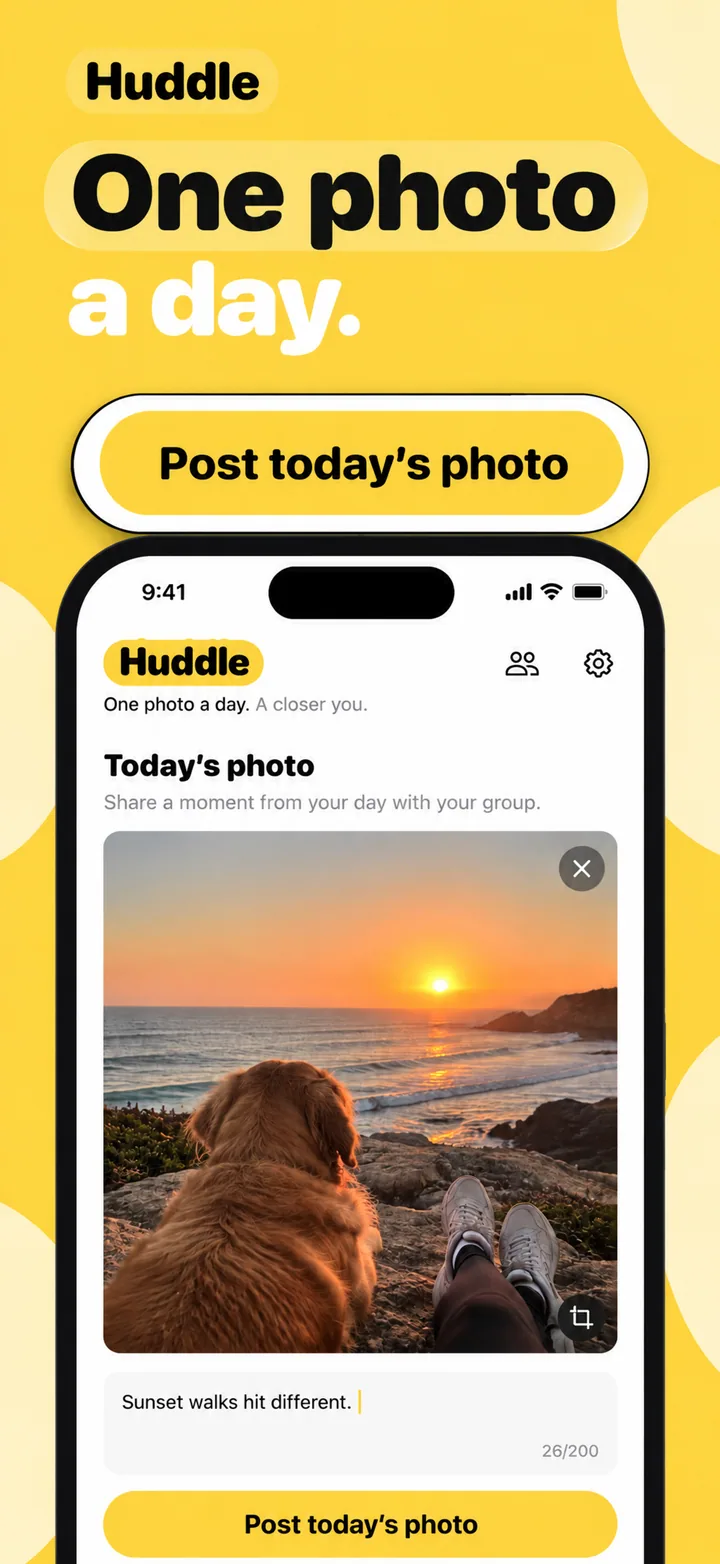
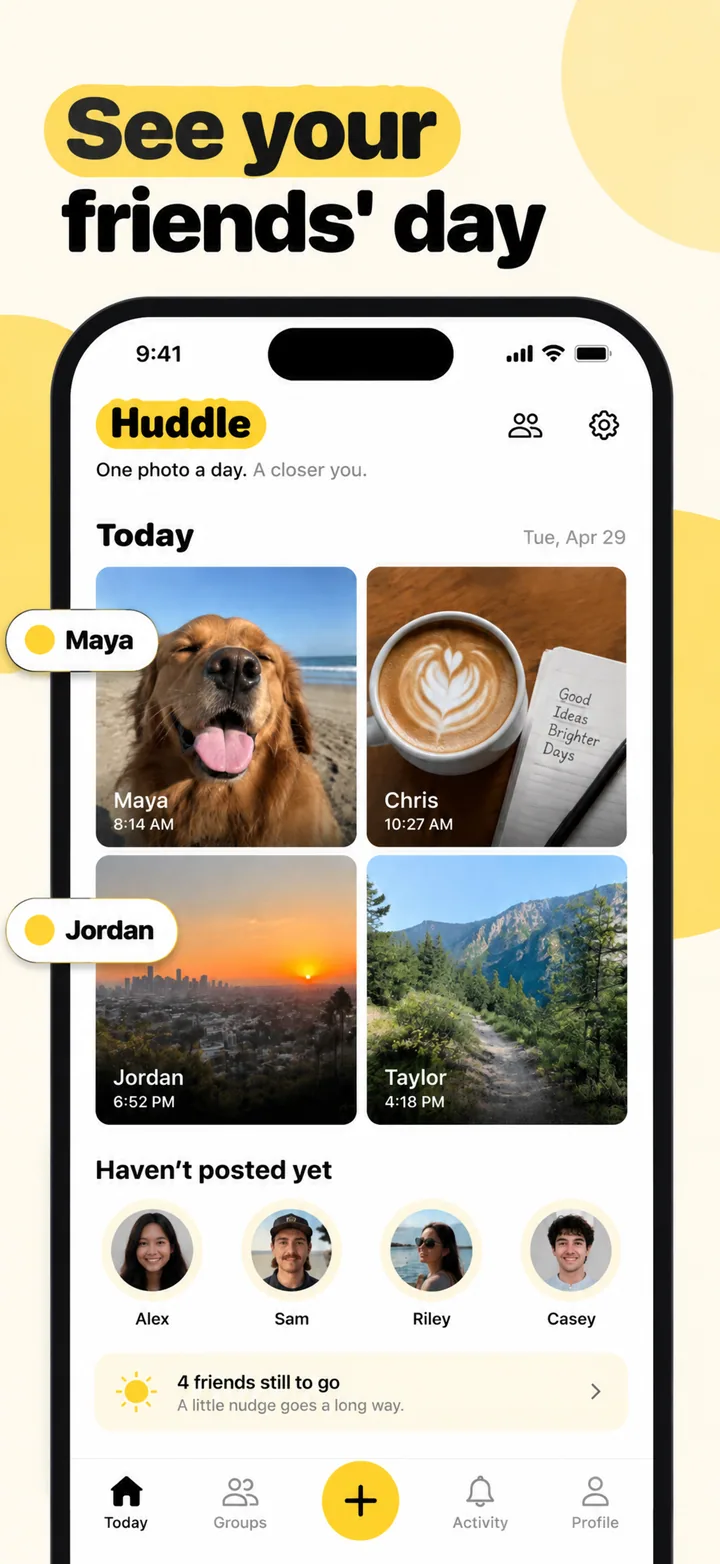
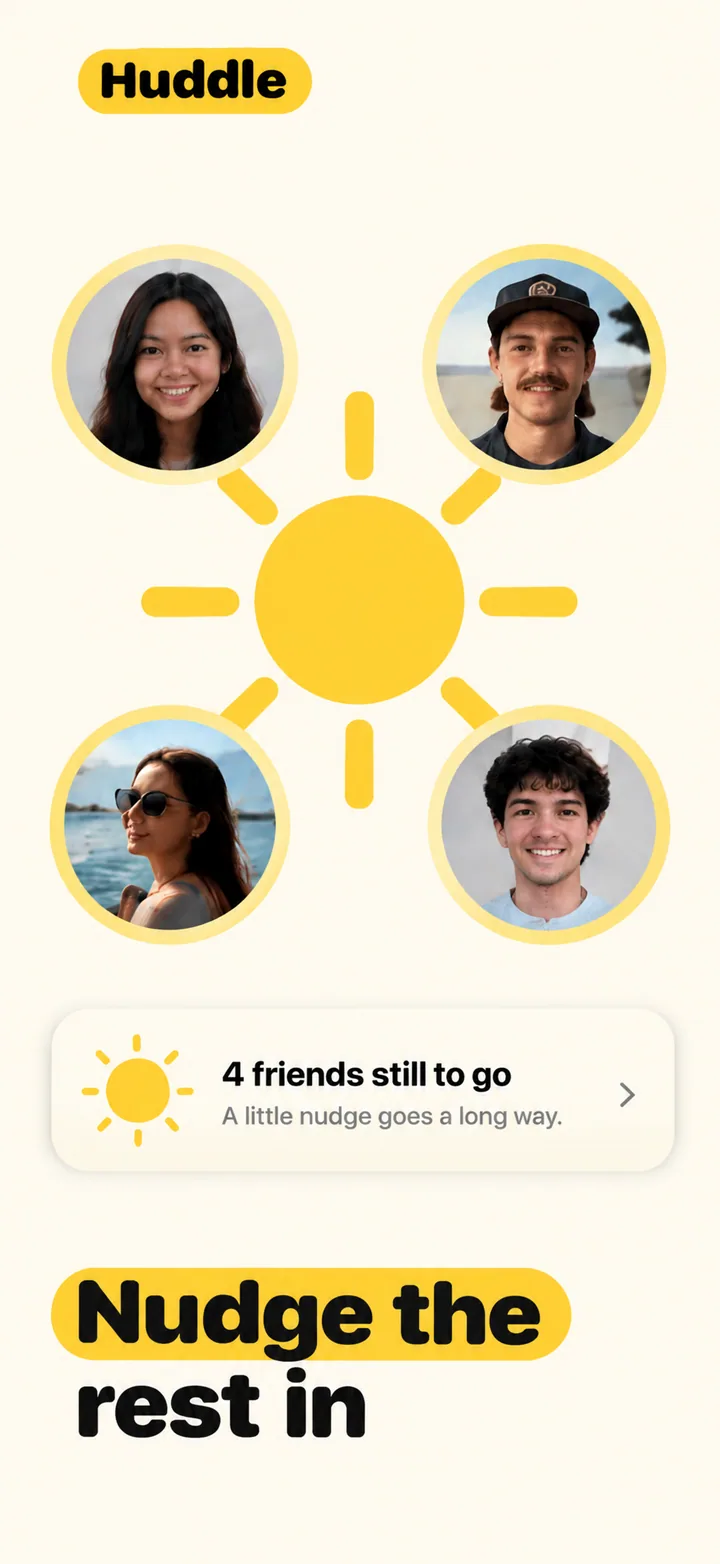
Social app screenshots must communicate energy and belonging before a user reads a single word. The dominant emotion in social app discovery is curiosity about who else is inside; users want to know if their people, their vibe, or their community exists within your app. Your first screenshot should therefore show a populated, lively interface, whether that is a chat thread with real messages, a feed with diverse faces, or a group room with active participants. The visual tone should feel warm and open, using colors that signal positivity and movement. Avoid sterile white backgrounds, empty states, or isolated single-user interfaces that make the app feel deserted before it has even launched on the user's home screen.
What makes social screenshots convert
The first screenshot of a social app is not selling a feature; it is selling a scene. The user is asking themselves a single question: "Do I want to be part of this?" Everything in your screenshot, from the color temperature to the density of faces to the rhythm of the layout, answers that question before the headline does.
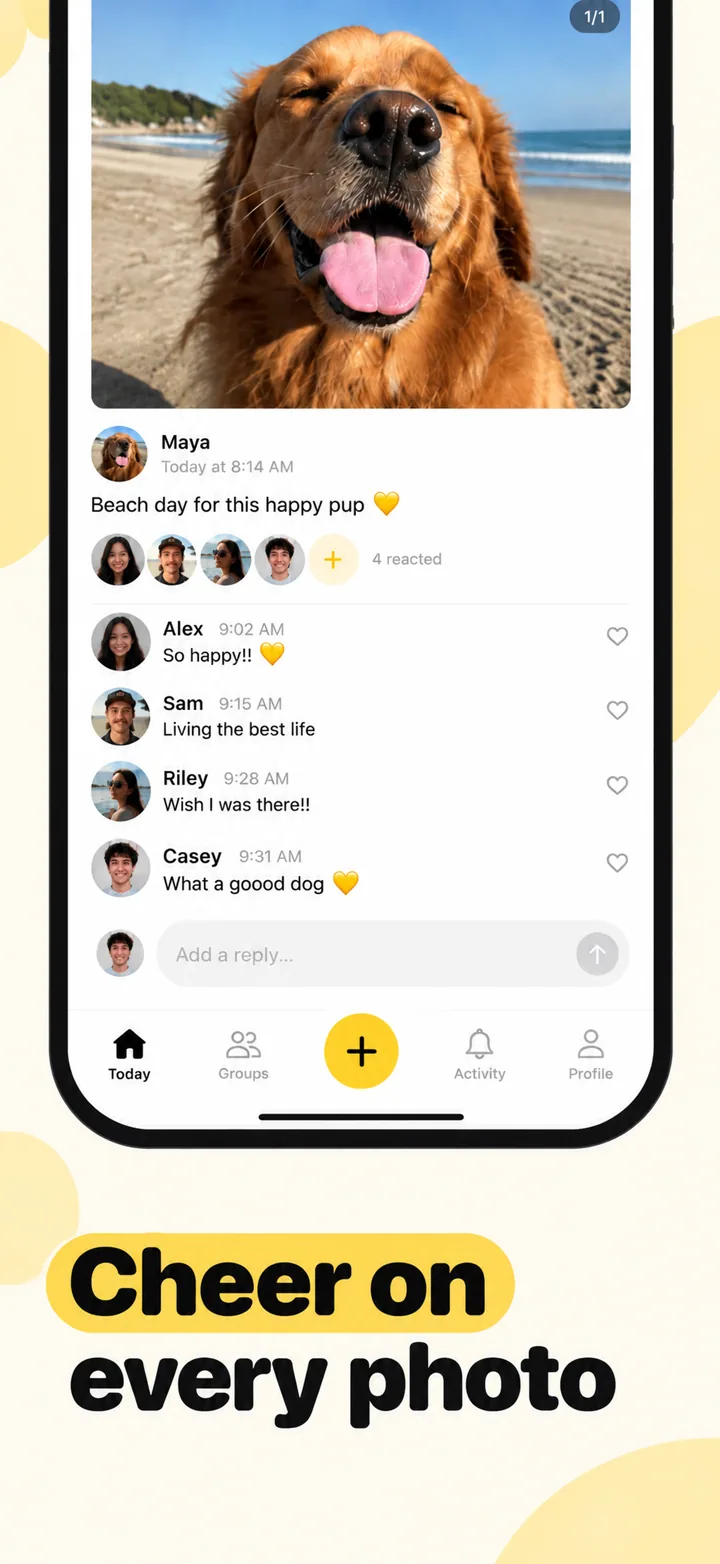
The value proposition of a social app is always relationships and expression. Your first frame must show this in action. A dating app should show a match conversation that feels witty and natural, not a profile form. A community app should show a lively thread with reactions, not an empty discovery page. A messaging app should show a colorful group chat with stickers and media, not the contacts list. The principle is universal: populate the world before you describe it.
The visual psychology of social apps leans heavily on warmth and kinetic energy. Humans are drawn to faces, movement, and color. Screenshots that use avatar clusters, message bubbles with media, and subtle gradient backgrounds feel active. Screenshots that use solo device frames on blank backgrounds feel abandoned. Your layout should embrace asymmetry and layered elements: a phone frame showing a conversation, a small floating avatar stack to the left, and a headline that reads like an invitation rather than a product spec.
Social proof in social apps is recursive and powerful. If your screenshot shows that other people are already inside, the viewer assumes the app is worth joining. This is why the best social screenshots include avatar stacks, reaction counts, and visible activity indicators. Even if your app is brand new, mock realistic community activity rather than showing an empty state. An empty chat screen is a conversion graveyard because it forces the user to imagine being the first person at a party, which is exactly the feeling they are trying to avoid.
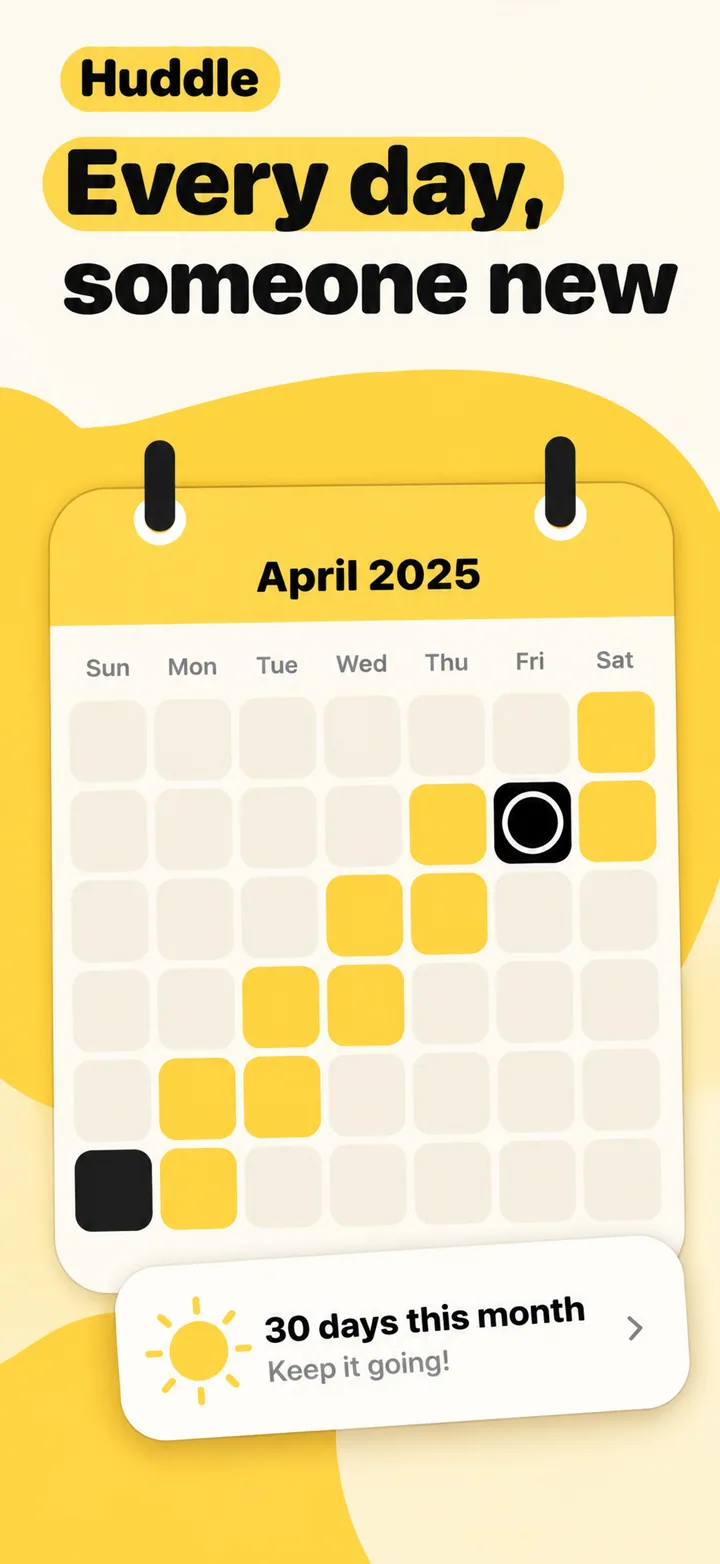
Layout advice for social screenshots: frame one is the party. Show the most energetic, populated screen you have. Frame two shows connection mechanics, such as matching, messaging, or friend discovery. Frame three shows creation or expression, such as posting, story creation, or profile customization. Frame four shows discovery or feed. Frame five closes with safety, moderation, or privacy controls. This arc mirrors the user's journey from curiosity to participation to trust.
Best colors for social apps
Social apps trade in emotion, and color is the fastest way to signal the emotional temperature of your community. The palette you choose tells a potential user whether your app is a calm coffee shop, a neon nightclub, or a cozy living room.
Warm coral and soft orange are the most inviting colors for general social and community apps. Coral sits between energetic red and friendly orange, creating a sense of enthusiasm without aggression. It signals openness, creativity, and low-stakes fun. Community platforms, hobby networks, and casual social discovery apps that use coral accents in their screenshots consistently out-perform those using cooler tones because coral triggers approach behavior rather than cautious evaluation.
Electric blue and vibrant cyan are dominant in messaging and real-time social apps. Blue is the most universally liked color across cultures, and in social contexts it signals reliability and openness simultaneously. Messaging apps use blue because it feels like a clear sky: limitless, welcoming, and calm enough for long conversations. When paired with white message bubbles and subtle gradient backgrounds, electric blue creates a sense of infinite possibility that invites users to start chatting.
Soft lavender and light purple work exceptionally well for niche communities, creative social platforms, and apps targeting younger demographics. Lavender signals imagination, individuality, and creative expression. It is less corporate than blue and less aggressive than red, occupying a unique emotional space that says "this is a place for you to be yourself." Social apps for artists, writers, fandoms, and identity communities benefit enormously from lavender-dominant palettes because the color itself communicates non-judgmental space.
Vibrant green and mint are strong choices for social apps with a growth, wellness, or environmental angle. Green signals growth, new connections, and positive momentum. A social accountability app or a community platform for personal development should lean into greens because the color pre-frames the social interaction as constructive rather than merely entertaining. Pair sage or mint backgrounds with cream or ivory text for a fresh, approachable aesthetic.
Colors to avoid: Heavy charcoal, slate grey, and pure black backgrounds feel isolating in social screenshots. They may look sleek for a productivity app, but in social contexts they signal emptiness and distance. Avoid muddy browns and muted earth tones that feel outdated and slow; social apps need to feel current and energetic. Finally, avoid overly dark purples and deep reds that can signal drama, danger, or toxicity, emotions no social app wants to evoke.
Common mistakes social apps make
Social apps face a unique screenshot challenge: they must simulate a thriving community without actually having one yet. Most social apps fail this test and hemorrhage potential users before they even get a chance to grow.
Mistake one: showing empty interfaces. An empty chat list, a blank feed, or a profile page with no posts is the single most damaging thing you can show in a social app screenshot. It triggers a powerful negative association: loneliness. Users do not download social apps to be alone. They download them to feel connected. Showing an empty state asks them to imagine filling it, which is work, and work kills conversion. Fix this by creating realistic mock data with diverse names, messages, and media. Populate every screen before you screenshot it.
Mistake two: leading with features instead of feelings. A headline that says "Group chat, video calls, and file sharing" describes functionality. A headline that says "Your people are already here" describes a feeling. Social apps convert on emotion, not specifications. Feature-heavy screenshots feel like software manuals; emotion-heavy screenshots feel like invitations. Fix this by writing headlines that would work on a party invitation or a community flyer. "Meet people who get you" will always outperform "Advanced matching algorithm with 12 filters."
Mistake three: using generic, overly polished stock photos. Perfectly lit models laughing in a coffee shop signal advertising, not authenticity. Social users have highly tuned fake detectors because they spend hours every day on platforms filled with real, messy, authentic content. When your screenshot looks like a stock photo catalog, users assume the app is manufactured rather than organic. Fix this by showing real UI with real data and using abstract color fields or subtle texture backgrounds instead of lifestyle photography.
Mistake four: ignoring safety and moderation. Modern social users, especially younger demographics and women, actively look for signals that an app is safe before they install. Screenshots that show wild, unmoderated communities without any mention of reporting, blocking, or privacy controls raise red flags. Fix this by including a moderation or privacy frame in your screenshot set. A simple shield icon or the phrase "You're in control" on frame five can significantly increase install rates among cautious users.
Mistake five: designing for one demographic. A screenshot set that shows only young men, only couples, or only one ethnicity signals that your app is not for everyone. Social apps are inherently about diversity of connection. When your screenshots look like a monoculture, users outside that group assume they will not fit in. Fix this by ensuring your avatar clusters, mock profile names, and implied community span ages, ethnicities, and relationship types. Inclusive visuals are not just ethical; they are conversion-positive because they maximize addressable audience.
How to create social screenshots with AI
Creating social app screenshots with Nuvex is designed to preserve the human energy of your app while automating the design craft that normally takes days.
Step one: Upload your most lively screens. Choose the ones that show messages, reactions, media sharing, or community feeds. Avoid settings screens, empty states, or onboarding tutorials. The AI needs to see the social heartbeat of your app to amplify it.
Step two: Describe your app with social-specific language. Instead of "chat app," write "community platform for indie musicians to share demos and collaborate on tracks." Specificity helps the AI choose the right emotional tone, palette, and element density.
Step three: Generate five frames. Nuvex will automatically select warm, energetic palettes, inviting headline formulas, and layouts that include avatar stacks and message bubbles where appropriate. The first frame will lead with an invitation-style headline.
Step four: Refine per frame. Click any frame and adjust. "Add more avatar faces to frame 2" or "Make frame 1 headline shorter and punchier." The AI regenerates only that frame while keeping the set cohesive.
Step five: Export in exact App Store and Google Play dimensions. Download your set, upload to the stores, and start converting browsers into community members.
Want social screenshots that convert?
Try Nuvex — free to start, no credit card.